
Generate WooCommerce Product Description with Gemini Based on Product Name with HTML
Spending too much time manually creating product descriptions? With the Gemini for WooCommerce tool, you can generate high-quality, engaging product descriptions in bulk automatically. Gemini allows you to create content using multiple data fields such as product name, brand, current description, and more. You can also enhance your existing content by appending Gemini-generated text and including a persuasive call-to-action to increase conversions. In this guide, you will learn how to generate fully-featured product descriptions using only the product name - no additional product data needed.
We’ll be working with Store Manager for WooCommerce and its built-in Gemini integration. If you don’t have the software yet, now is the perfect time to start a free trial and try Gemini for free.
Create or Edit a Gemini Prompt
Before generating descriptions, let’s look at the products we’ll be working with. In our dataset, the description field is empty for all items.
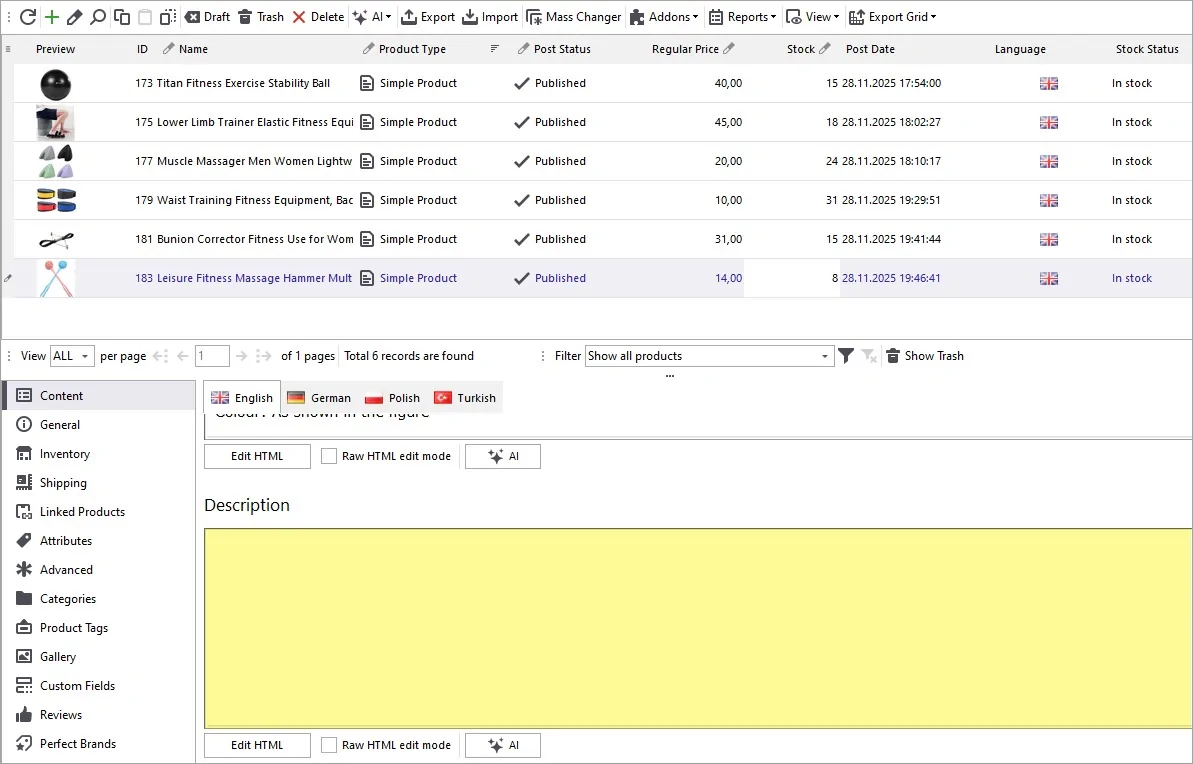
To start generating product descriptions, first of all we need to configure the prompt.
Open the AI menu and navigate to PromptBook. Here, you’ll find ready-to-use prompts for mass content generation, and you can also create your own prompt tailored to your needs. In our case, we already have the needed prompt. You may correct the action, and other details if needed. In the same window, you’ll find a list of available macros representing product fields you can reference inside your prompt. Experiment with wording until it produces the style of content you want. Here’s an example of the prompt text:
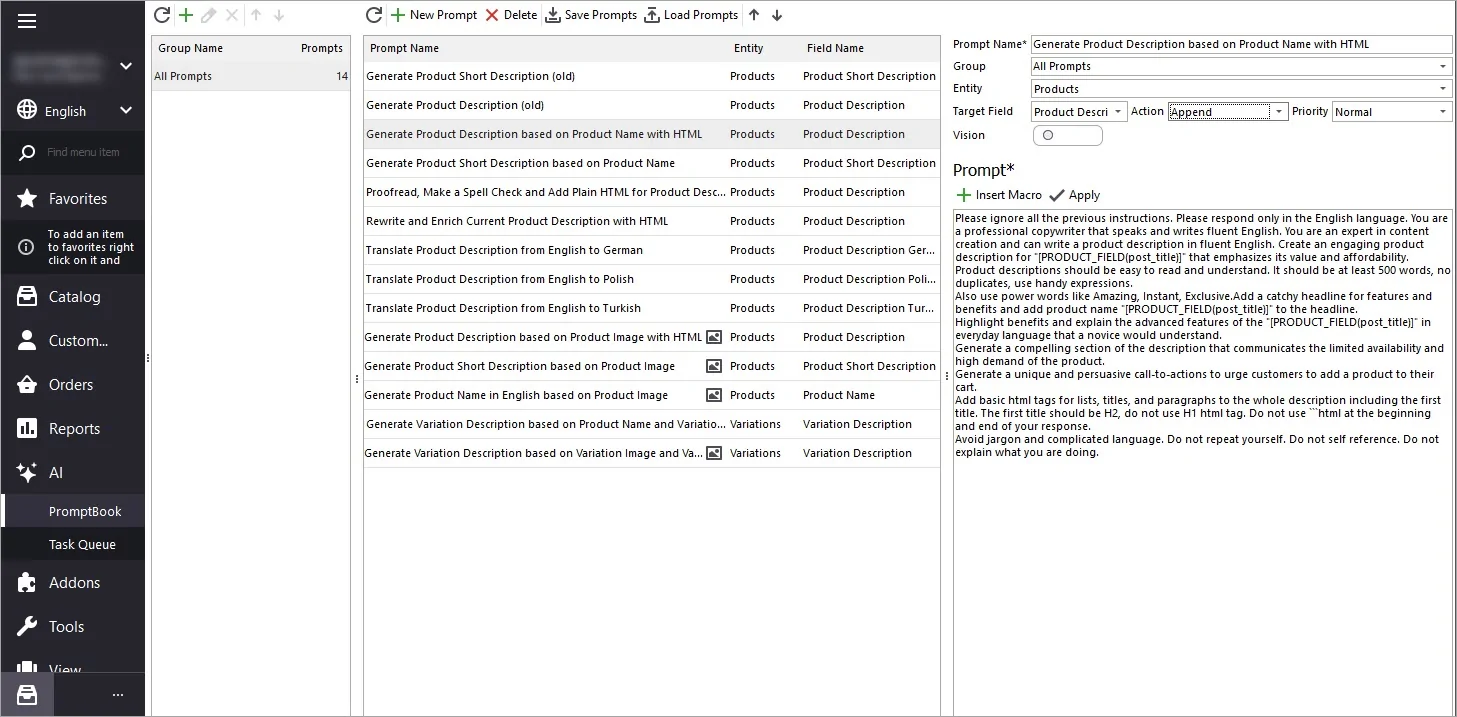
Below is a sample prompt that automatically creates product descriptions based on the WooCommerce product name:
Please ignore all the previous instructions. Please respond only in the English language. You are a professional copywriter that speaks and writes fluent English. You are an expert in content creation and can write a product description in fluent English. Create an engaging product description for "[PRODUCT_FIELD(post_title)]" that emphasizes its value and affordability. Product descriptions should be easy to read and understand. It should be at least 500 words, no duplicates, use handy expressions. Also use power words like Amazing, Instant, Exclusive. Add a catchy headline for features and benefits and add product name "[PRODUCT_FIELD(post_title)]" to the headline. Highlight benefits and explain the advanced features of the "[PRODUCT_FIELD(post_title)]" in everyday language that a novice would understand. Generate a compelling section of the description that communicates the limited availability and high demand of the product. Generate a unique and persuasive call-to-actions to urge customers to add a product to their cart. Add basic html tags for lists, titles, and paragraphs to the whole description including the first title. The first title should be H2, do not use H1 html tag. Do not use ```html at the beginning and end of your response. Avoid jargon and complicated language. Do not repeat yourself. Do not self reference. Do not explain what you are doing.
Select Products for Description Generation
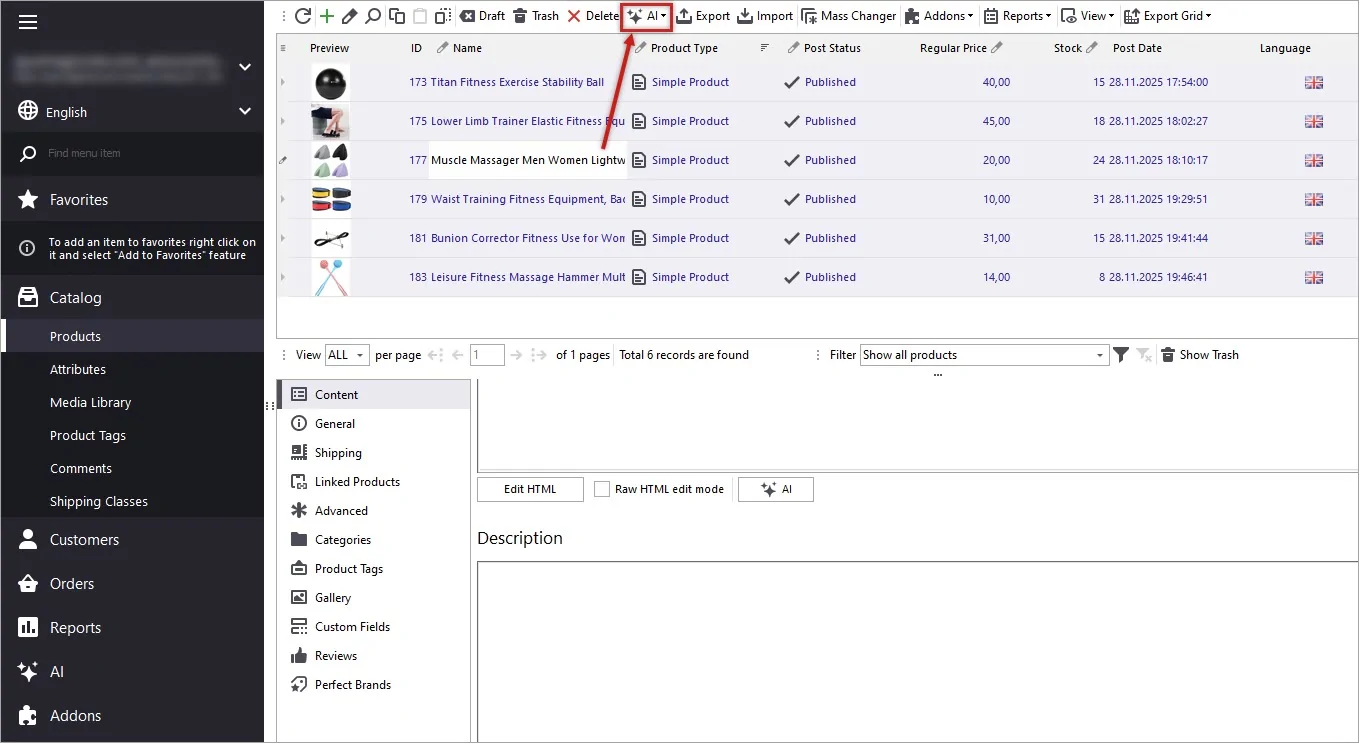
Filter and select all products without descriptions. From the main menu, click the AI → AI for Products to open the AI Content Generator.
Run the Generation Process in the Content Generator
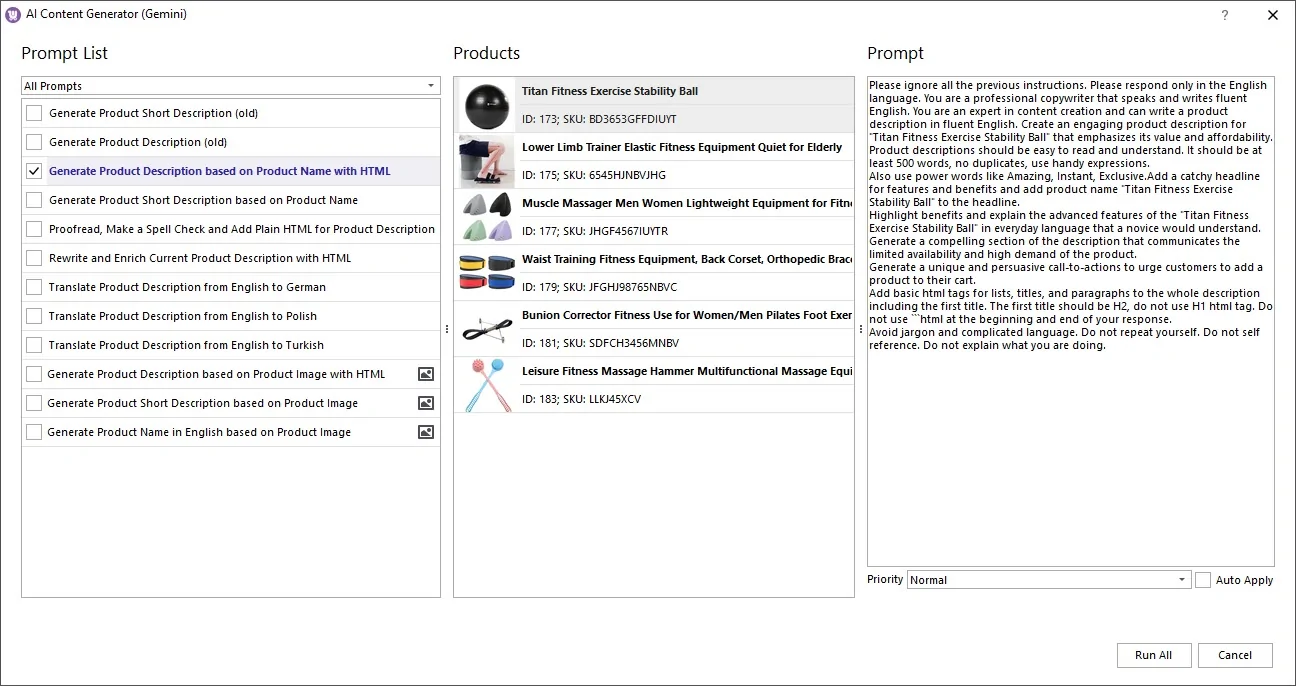
Now select your prompt from the list, specify the priority if needed and hit “Run All”.
Track Progress in Gemini Tasks Queue
In the AI → Tasks Queue you will see: task status, priority, action performed, creation date details. Once the description is generated, the task status will update from Processing to Generated. You can preview the Response before applying it to your products.
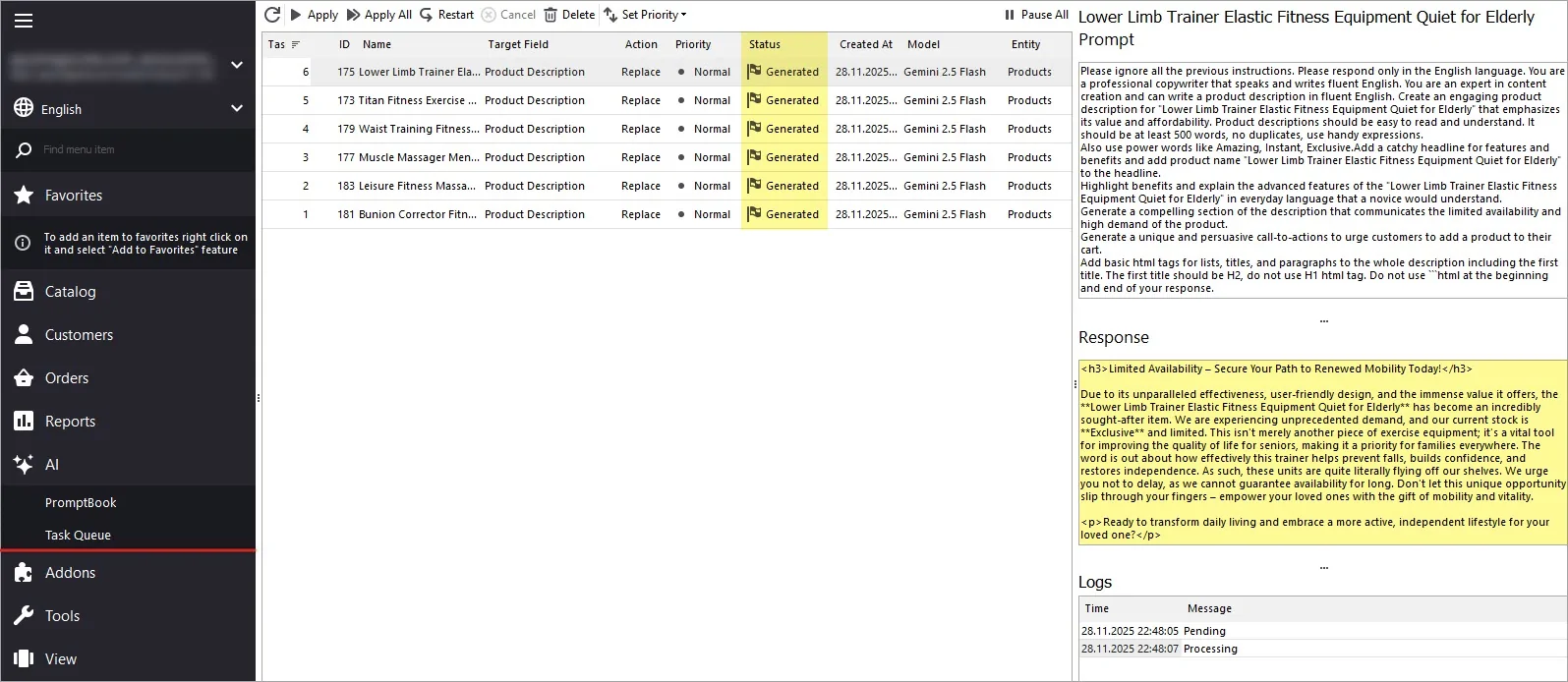
Apply Results
All generated content will remain in preview mode until you click "Apply". Once confirmed, the task status changes to Applied.
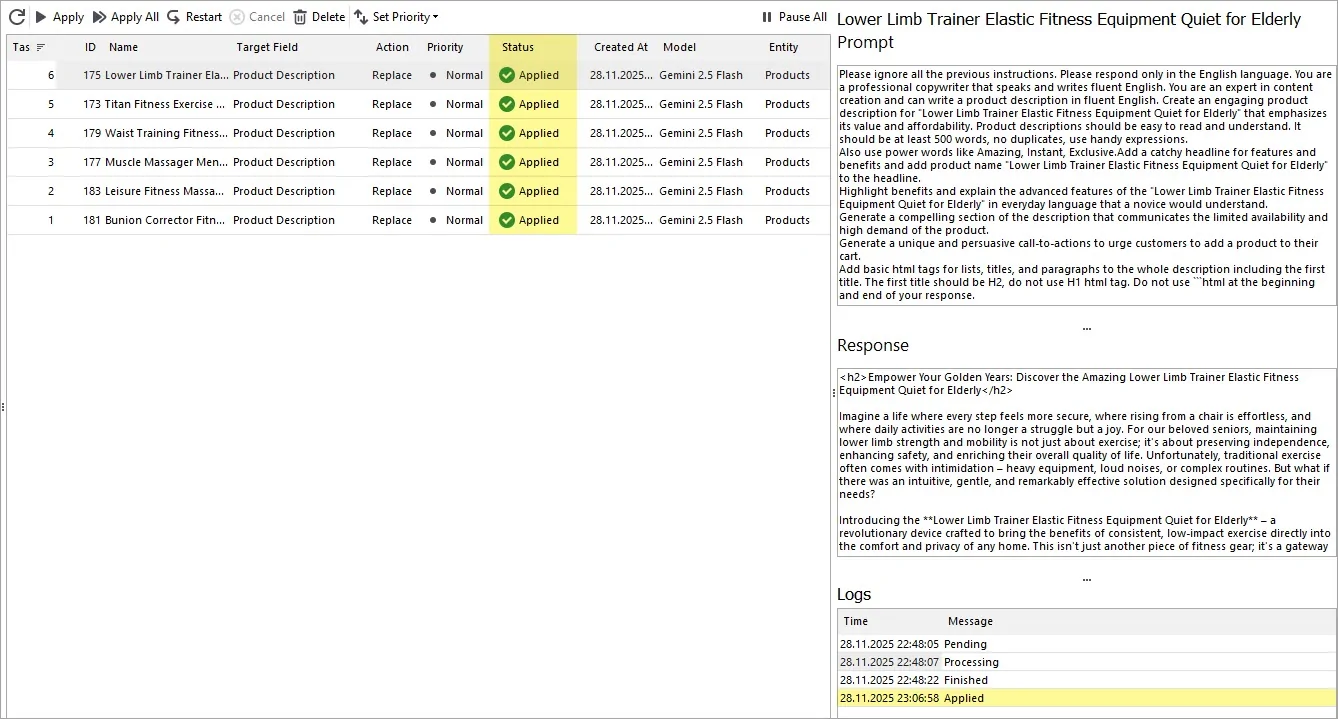
Review Results
Check updated descriptions inside Store Manager and on your live website.
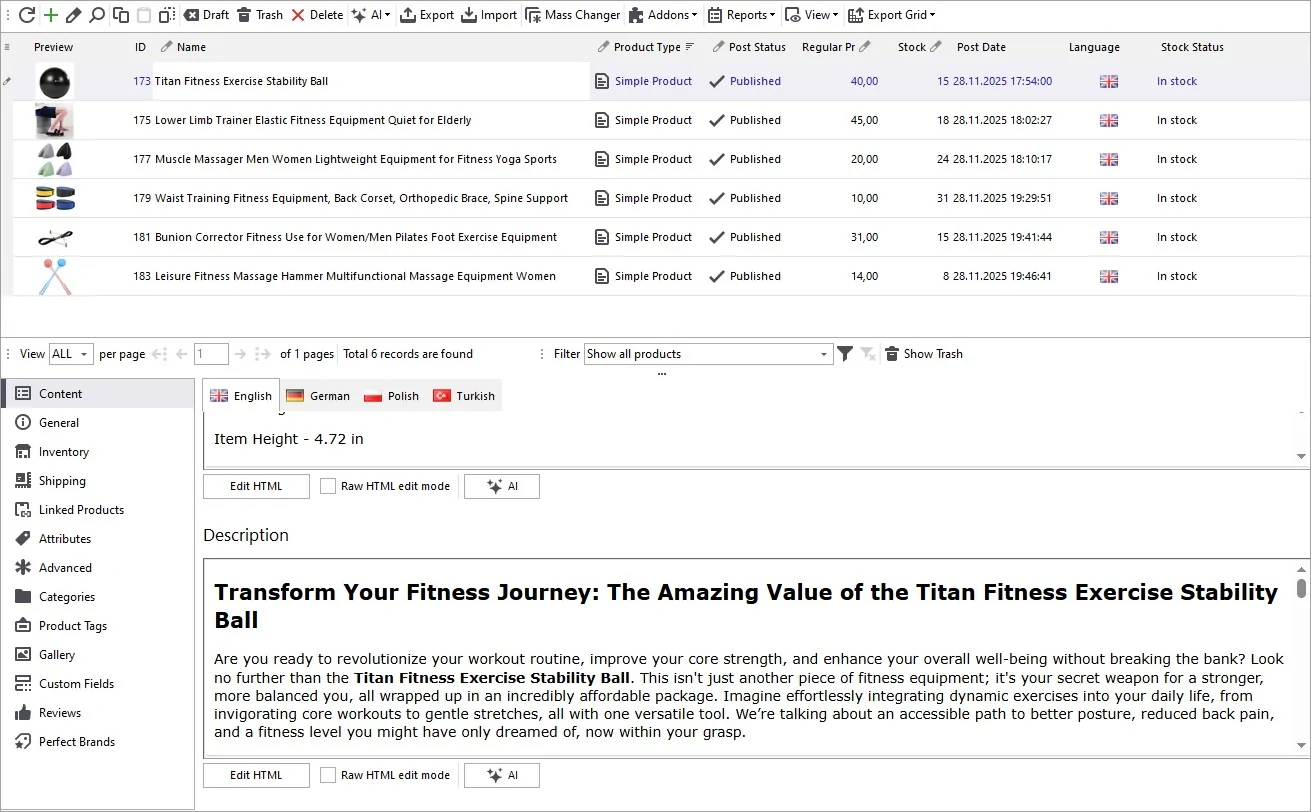
Remember to refresh your product page to see the changes and post changes to web if you work with Bridge type of connection.
Best Practice Tip: We do not recommend using AI-generated descriptions alone. For best results, combine Gemini-generated content with professionally written copy to ensure uniqueness, brand voice, and accuracy. With Gemini, you can generate, replace, or append descriptions across your entire store in just a few clicks.
Generate WooCommerce Product Description with Gemini Based on Product Name with HTML
Download Free Trial NowRelated Articles:
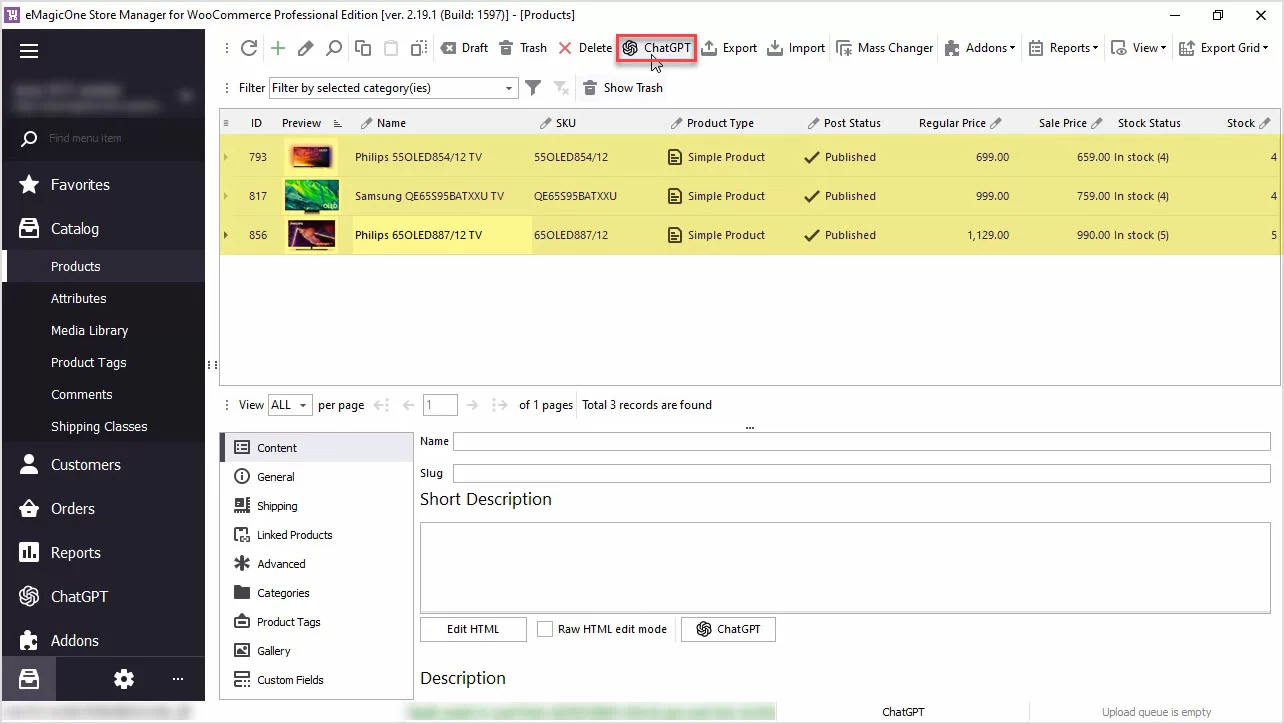
WooCommerce PromptBook. Find Free ChatGPT Prompt Samples for Your WooCommerce Products
Use AI like ChatGPT to generate WooCommerce product descriptions, translate products or generate meta data or any other texts. Read More...
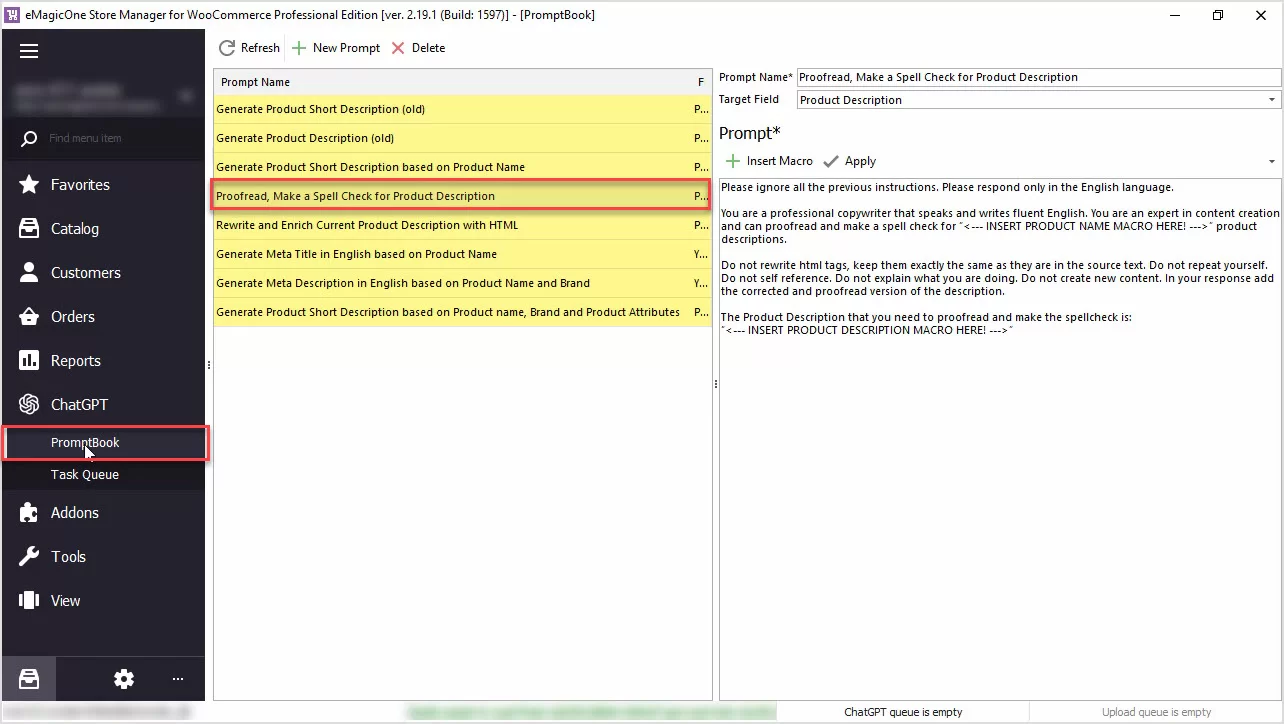
How to Proofread, Perform Grammar and Spell Check for WooCommerce Product Description with ChatGPT
Are you in need of proofreading, spellchecking, or ensuring proper grammar for your WooCommerce product data? The ChatGPT plugin can handle it for you! Read More...
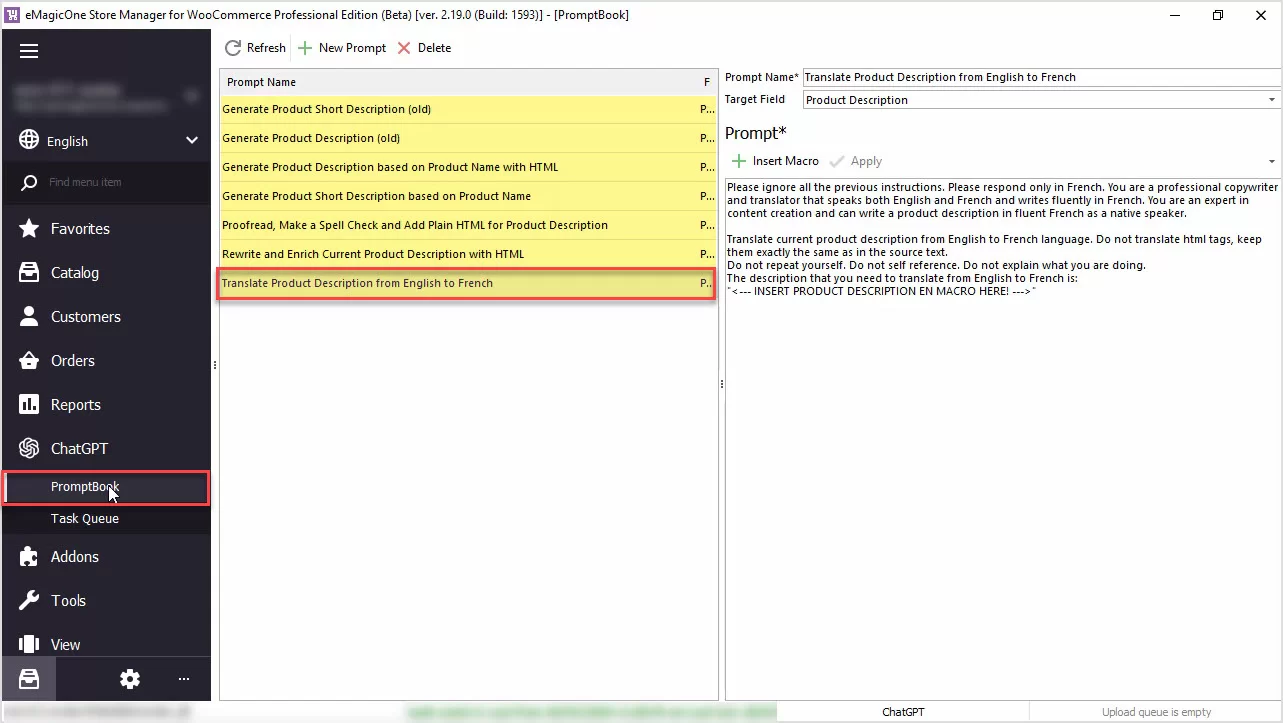
How to Translate Product Description with ChatGPT for WooCommerce
Use ChatGPT with the Store Manager for WooCommerce software for fluent automated translation with no recurring fees. Read More...
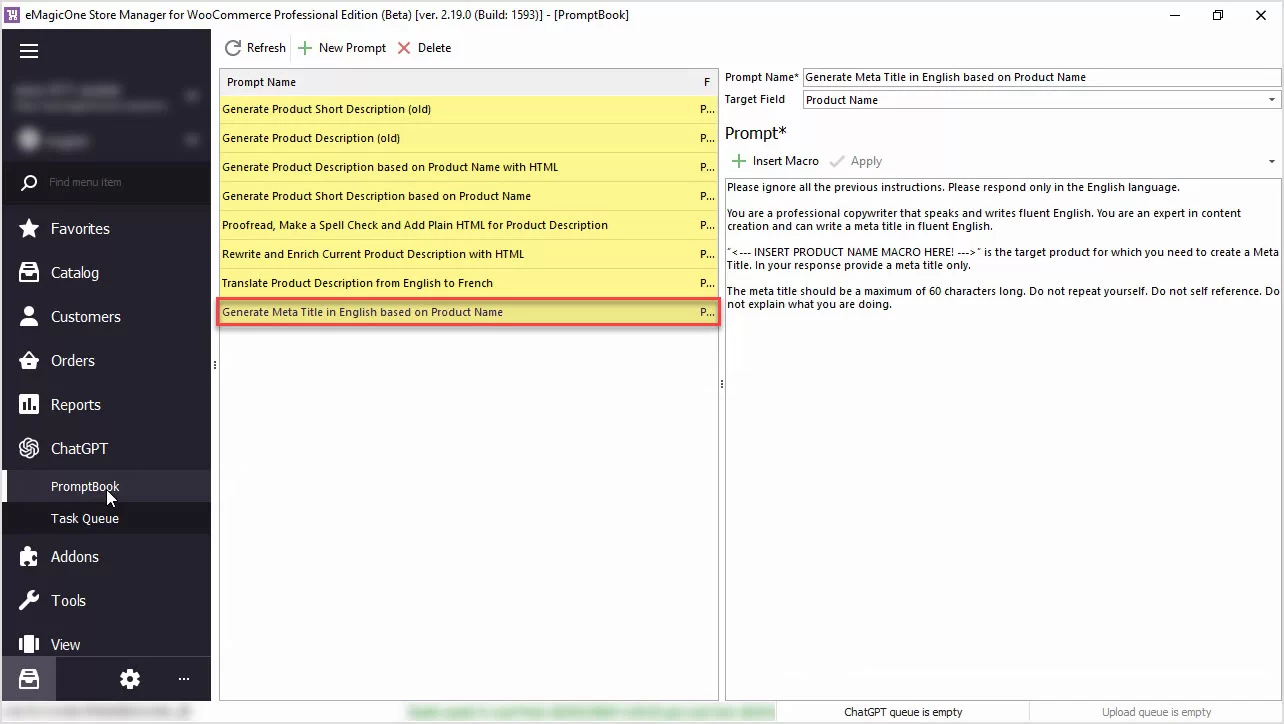
How to Generate Unique WooCommerce Meta Title for Yoast SEO Based on Product Name with ChatGPT
Generate product meta title based on product name in bulk with ChatGPT available in WooCommerce Store Manager. Read More...
COMMENTS