How to Print WooCommerce Receipts on Thermal Printer Automatically
There are several practical reasons why WooCommerce store owners want receipts to print automatically, especially on thermal printers. In a brick-and-mortar shop running WooCommerce POS, automatic printing saves staff from clicking through multiple screens. Customers expect a physical receipt immediately after payment, and this makes WooCommerce function more like a traditional cash register. For online orders, an instant printout can be sent straight to the kitchen or bar without staff intervention. This removes delays (no need to check email or the dashboard) and reduces mistakes.
WooCommerce users want automatic receipt printing to make their store faster, more professional, and more reliable - whether in a physical shop, kitchen, warehouse, or pickup point. Store Manager for WooCommerce supports this functionality.
WooCommerce Store Connection
To start printing WooCommerce receipts on a thermal printer automatically via Store Manager, make sure your store is connected to the application. If you do not have the software yet, download a free trial and use all features free for 14 days.
Receipt Template
Store Manager includes a ready-to-use thermal receipt template that typically contains:
- Shop name, address, and website
- Product names with prices
- Subtotals, totals, taxes, and discounts
- Date and time of receipt
- Barcode
- Footer text (such as a thank-you message)
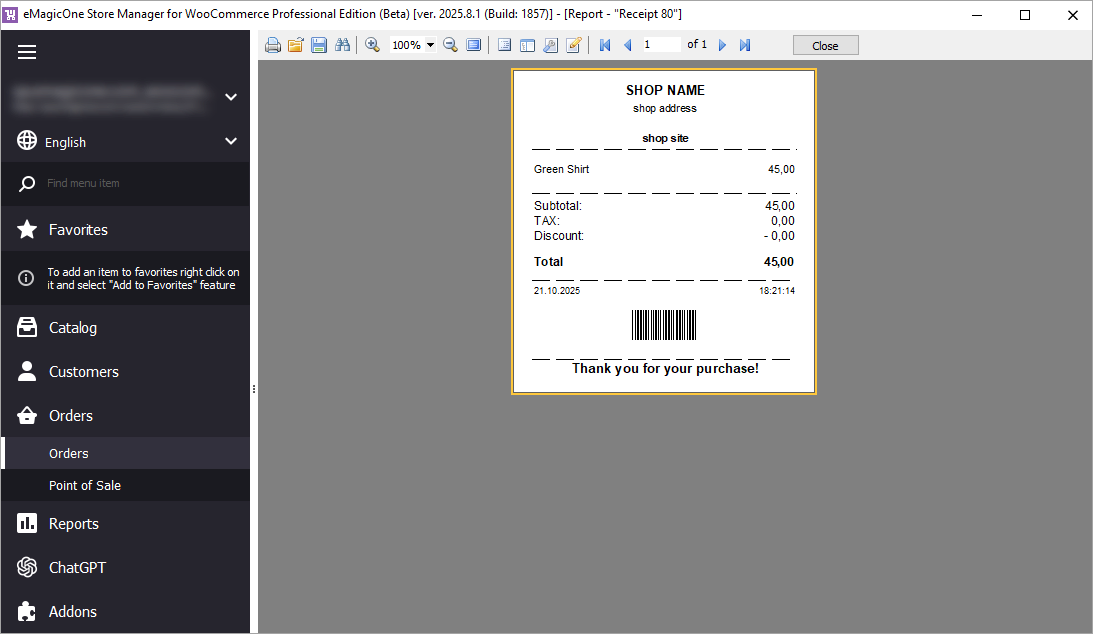
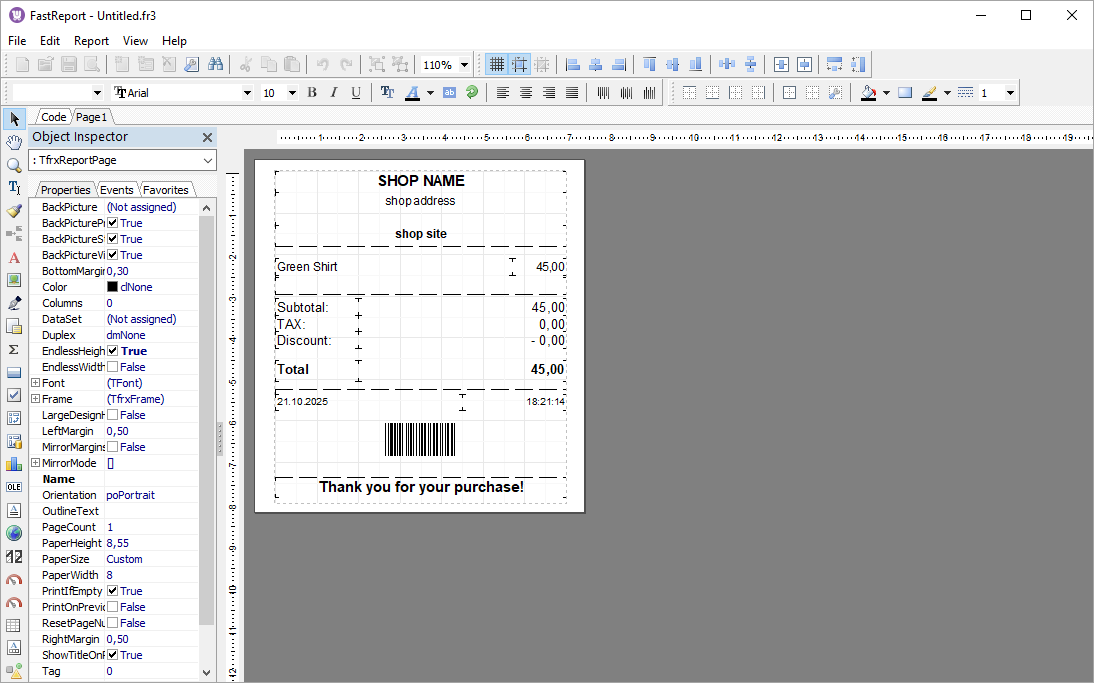
If you need to adjust the layout, Store Manager offers a built-in Report Designer (FastReport), allowing you to fully customize the receipt to match your brand or local formatting requirements.
Printer Setup
To print receipts in Store Manager:
- Open the Preferences (F12) window and go to Receipt Options.
- Select the device from the dropdown and choose either the 58 mm or 80 mm format.
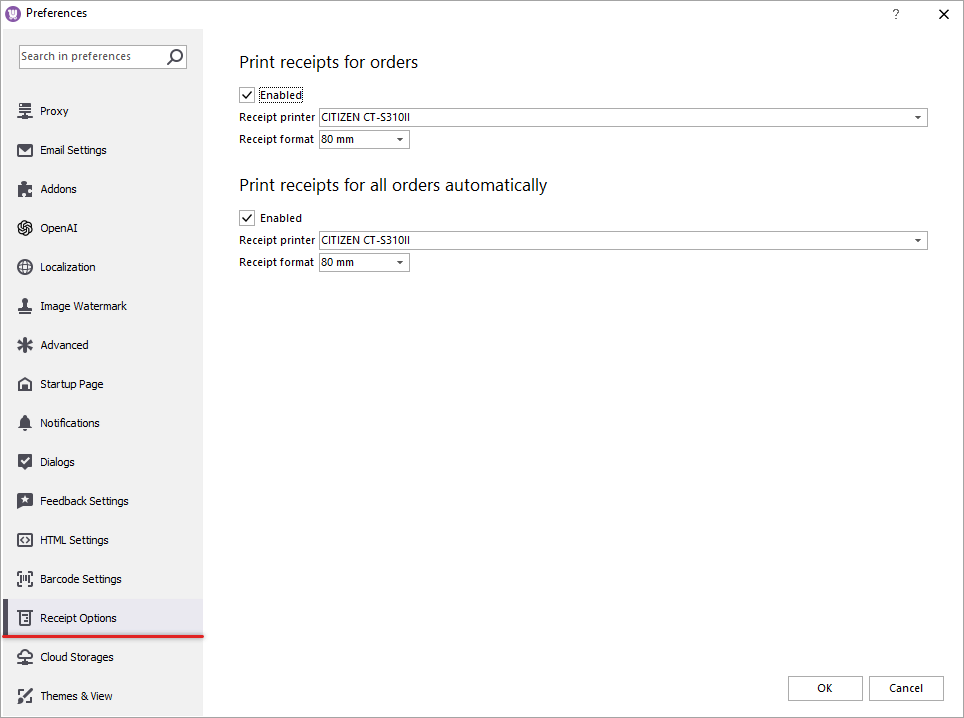
To print receipts automatically for all newly created orders, enable the “Print receipts for all orders automatically” option (this skips the preview window and sends the job directly to the printer). Then choose your printer and paper size.
Once set up, every new order will immediately trigger a printed receipt, helping your team work faster and stay organized.