
Export WooCommerce Orders to Google Sheets
When you export WooCommerce orders to Google Sheets you get more functionality to filter, sort and analyze data, get insights, create reports. It is also a fast way to provide quick access to the orders data to partner or supplier. Just copy a link and send it.
[quote color="green"]Note The possibility to save orders from WooCommerce to Google Sheets was added in Store Manager for WooCommerce v.1.22.0.1089 (released in November, 2019) .[/quote]
Following are the steps to export WooCommerce Orders to Google Sheets
- Download a free trial version of Store Manager for WooCommerce and establish connection to your store.
- Launch the orders export wizard.
- Connect to your Google Drive account.
- Follow the steps in the wizard to export orders to Google Sheets.
1. Download a free trial version of Store Manager for WooCommerce and establish connection to your store
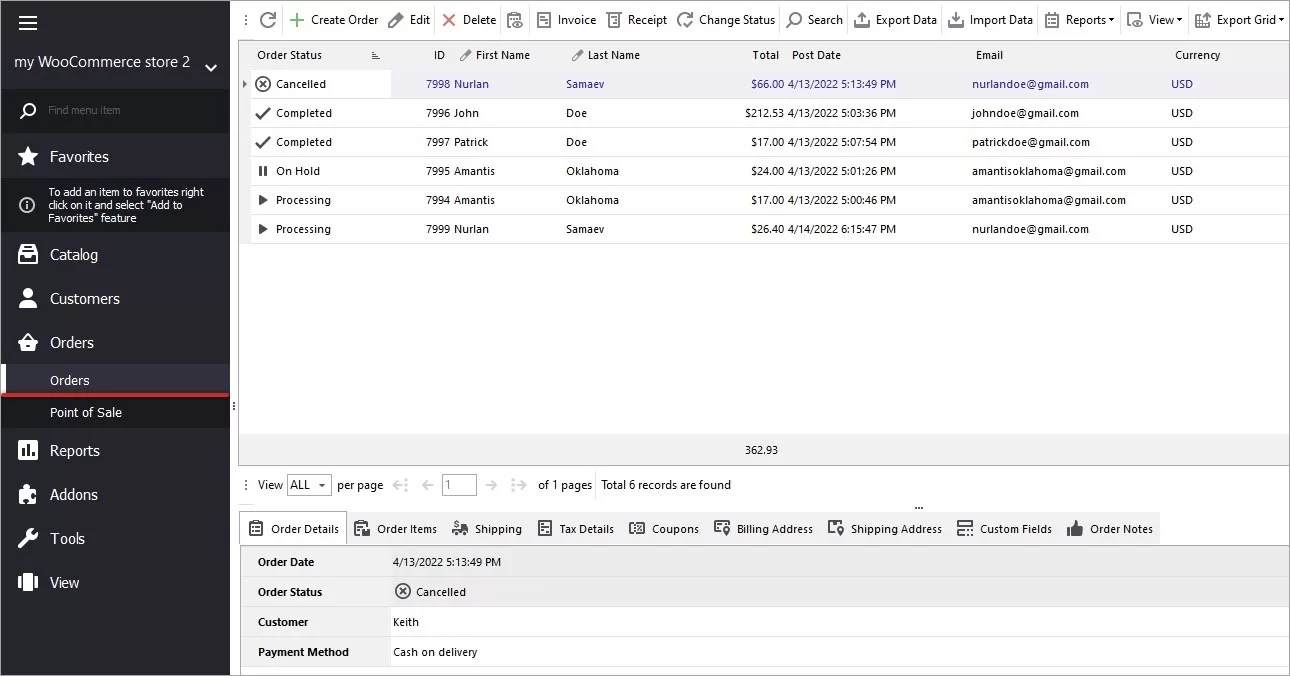
If you don’t have a Store Manager installed yet, download it free here. Use quick connection wizard to connect to your store database step by step. When connection is established, you will see all store data. Switch to the "Orders" tab to see your store orders:
2. Launch the Orders Export Wizard
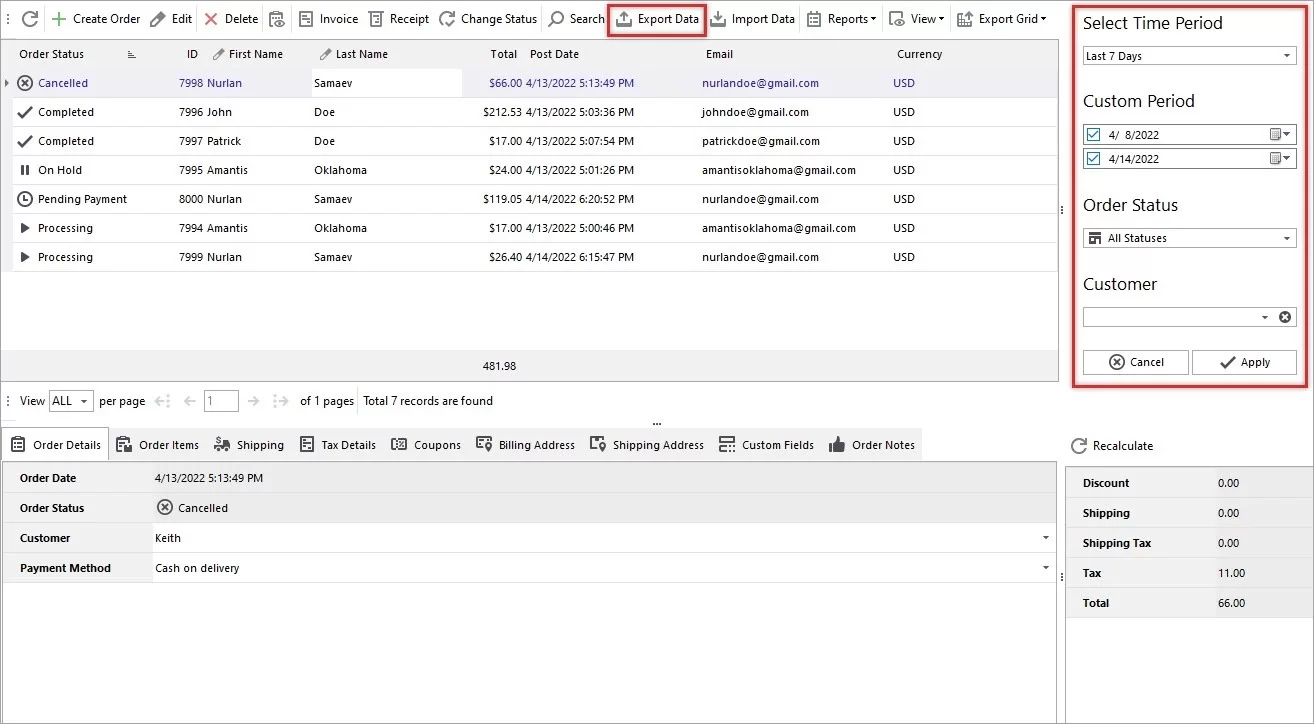
Use filters on the right to filter orders by date they were created, status or customer, click Apply. Then select filtered orders and press the "Export Data" button on the toolbar:
3. Connect to Your Google Drive account
In the Wizard, under Select export target switch to Google Sheets. To connect to your Google Drive press Add Account:
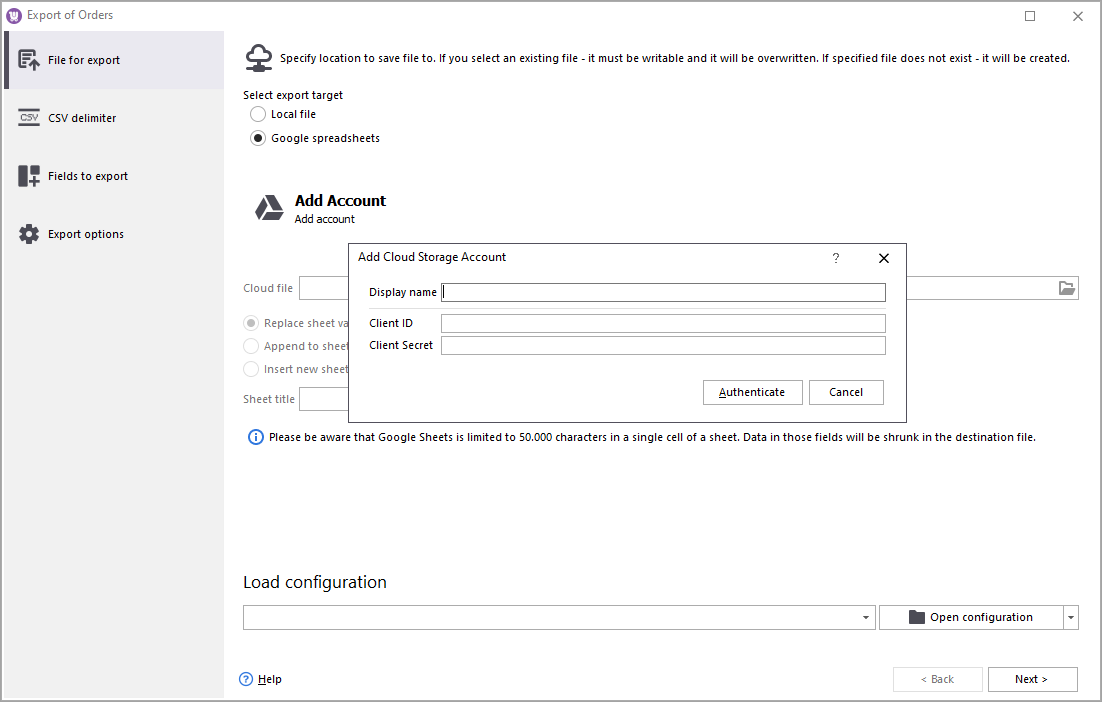
You can connect to several Google accounts for example your personal account and your supplier’s account. Therefore, give your connections meaningful names to distinguish them quickly.
Learn how to generate Google API key to get access to Google Sheets with Store Manager in this article.
You will be redirected to the Google authentication window that provides your Google account sign in to Google Drive Integration. Selecting the account, you need to grant the addon access to view, modify, create and delete all your files on Google Drive; view and manage your Google Drive files and folders that are open or created with this Integration; view, modify, create and delete your spreadsheets in Google Drive.
After you connected to your Google account you will be redirected back to the Wizard.
4. Follow the steps in the Wizard to export orders to Google Sheets
If you already have the file to export orders to you can choose among the following options:
- Replace sheet values
- Append sheet values
- Insert a new sheet in a file (with the date)
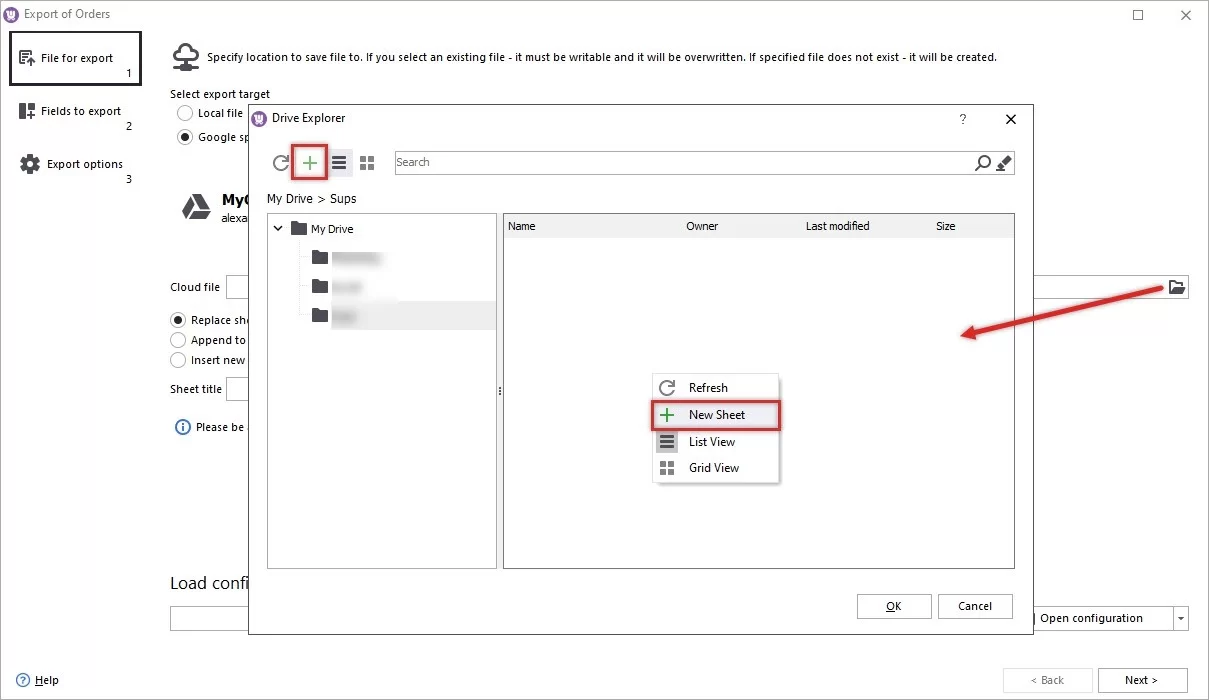
Click the Browse button to select the file. If you want to export orders into a new file press Plus, specify a filename and click OK:
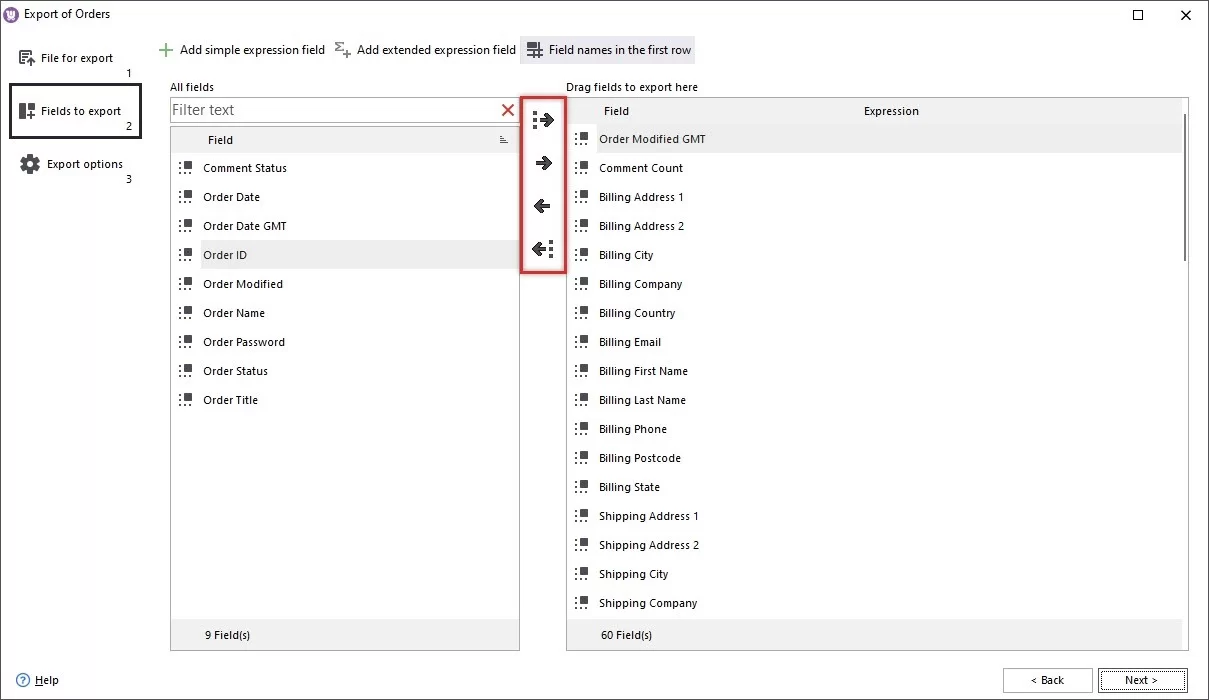
The Google Spreadsheet file is now selected so press Next. On this step, you can choose which fields you want to export. Use single arrow to move certain fields to the right pane or click the button with three arrows to select all fields:
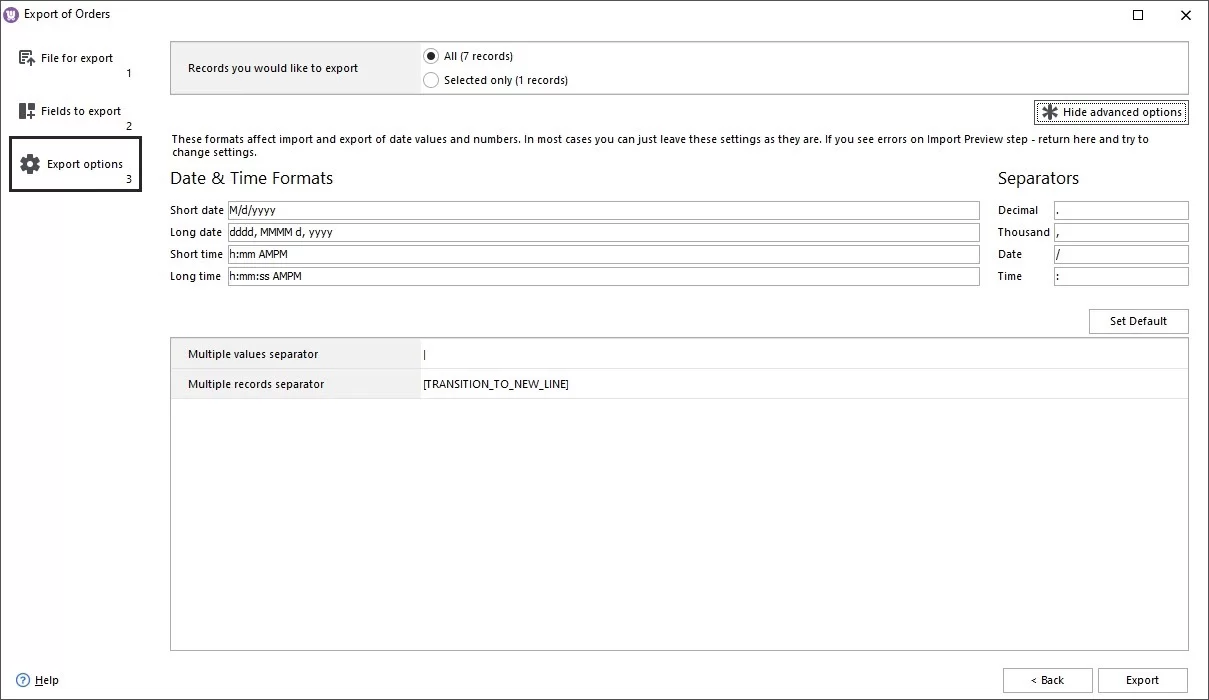
On the Export options step you should specify whether to export all orders or those you selected before. Switch to the corresponding option and press Export:
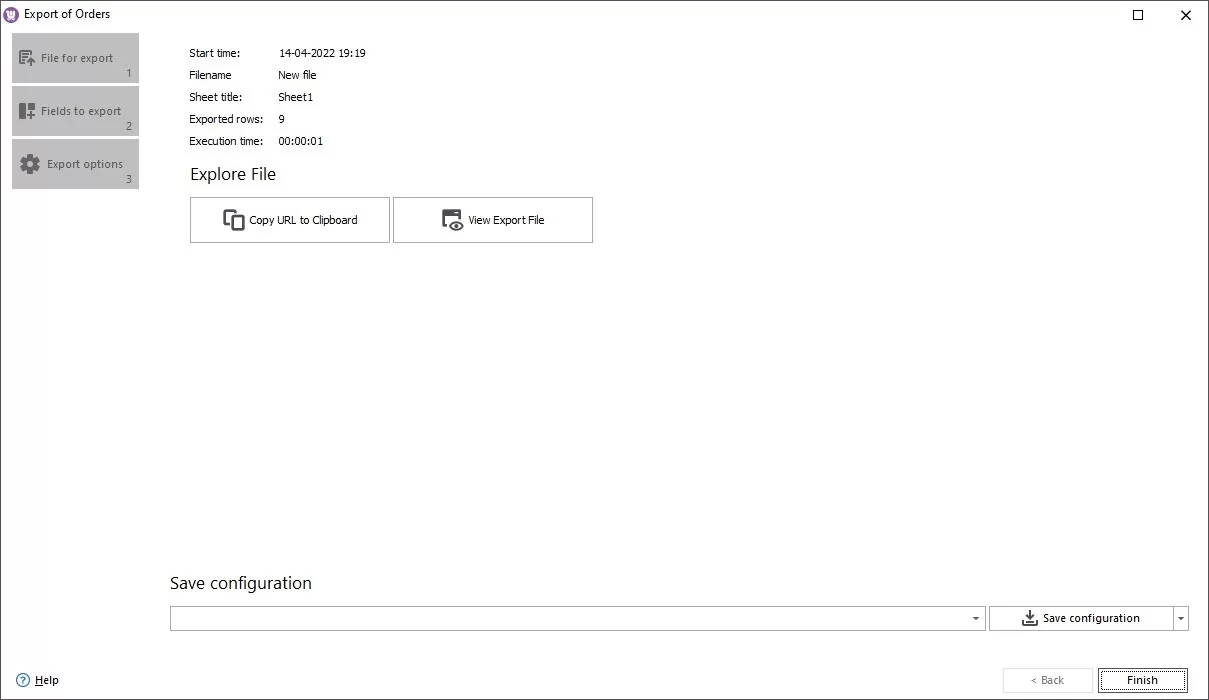
On the final step you can save export configuration and just load it next time you need to send orders to Google Drive.
Copy the URL to a clipboard if you want to send it to your supplier or client, for example. Or go directly to the file pressing View Export File:
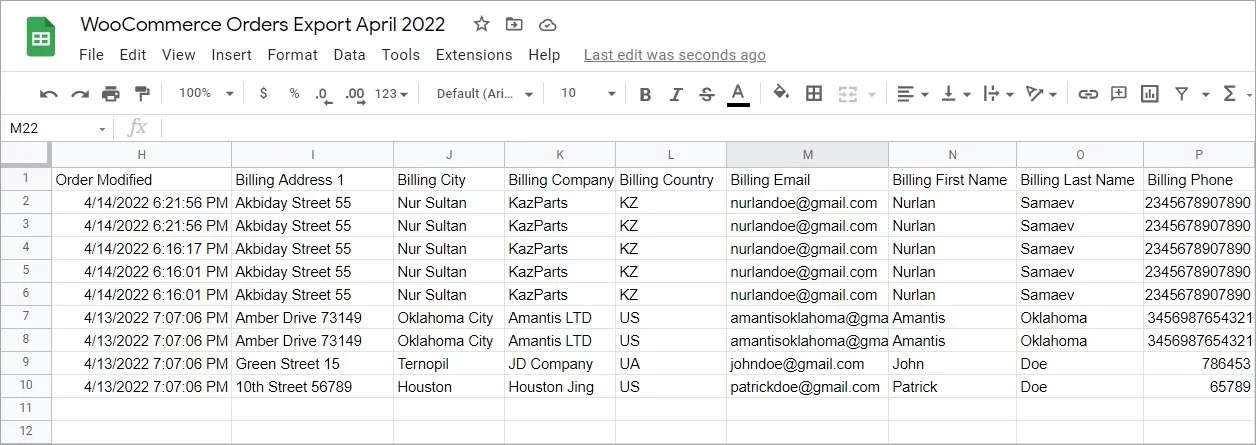
Here is the list of the exported orders on Google Drive:
Use Store Manager to record WooCommerce orders to Google Sheets flawlessly. Let the software do the routine and use saved time to develop your online business!
Export Orders into Google Sheets with Store Manager for WooCommerce
Export Orders FreeRelated Articles:
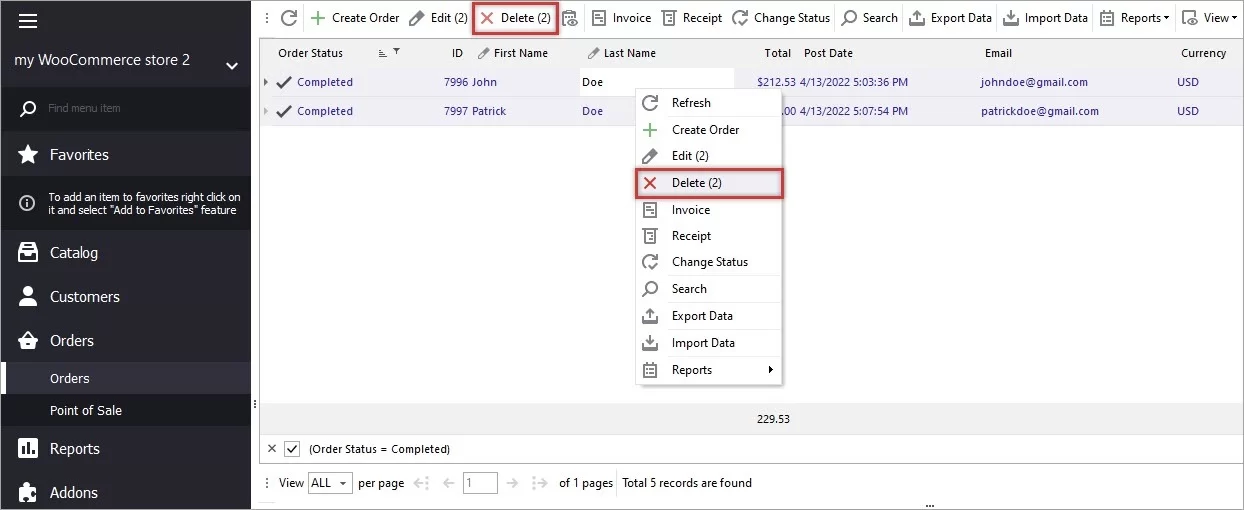
How to Remove WooCommere Orders
Do you need to remove WooCommerce orders with "Completed" status? Or you are moving from a shop with demo data to a new site and want to delete test records? Delete them one by one and in bulk with Store Manager. Read More...
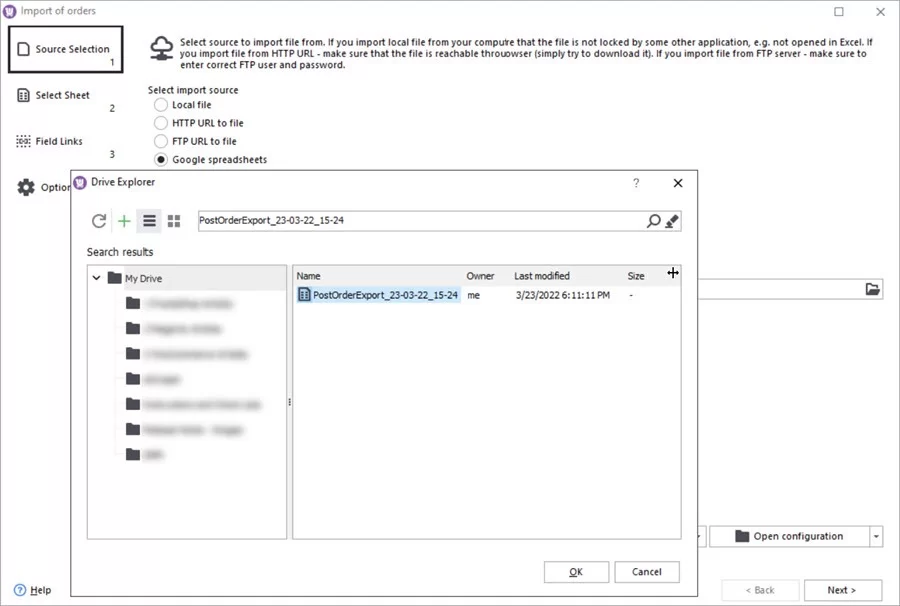
Import Orders to WooCommerce from Google Sheets
The most common reason to import orders to WooCommerce is probably migration from one WooCommerce store to another. Learn how to import orders from Google Sheets in the following article. Read More...
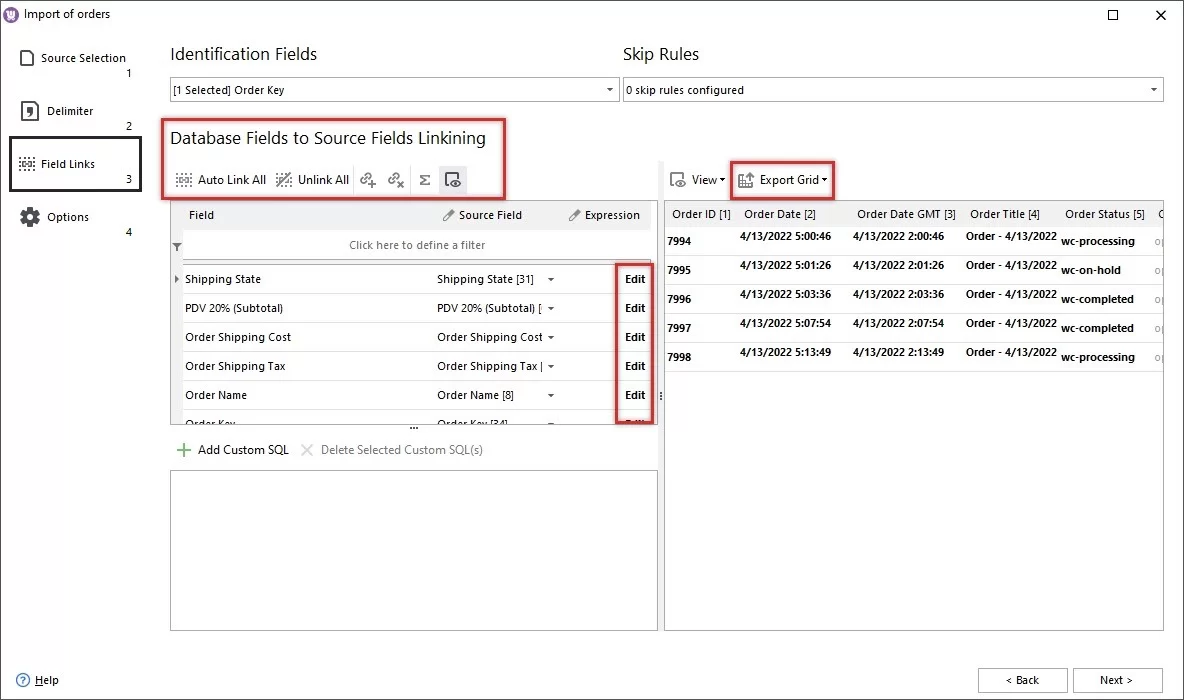
How to Import Orders in WooCommerce
To assist you with WooCommerce orders upload Store Manager offers the possibility to do it from a CSV file in an advanced manner. Read More...
WooCommerce – Order Export To CSV
Running an online store, you may need to export WooCommerce orders to CSV, for instance, to prepare a report for yourself or your supplier. Use Store Manager for advanced export. Read More...
COMMENTS