How to Perform WooCommerce Excel Import
Managing your WooCommerce store you might need to import Excel file to WooCommerce. But WooCommerce accepts only .csv files by default. So you either have to convert your Excel file to .csv format or use an external solution that allows importing Excel files to WooCommerce directly. One of such solutions is Store Manager for WooCommerce.
Store Manager for WooCommerce is a downloadable application that enhances the default WooCommerce functionality with tools for bulk edits, advanced import/export, database backup, data generation, and others.
If you don’t have Store Manager yet, download a free trial and install it on your computer. Connect the application to your store database and enjoy the simplicity of your store administration.
Below you'll find a step-by-step instruction to upload products to WooCommerce from an Excel file.
Steps to Import WooCommerce Products From Excel
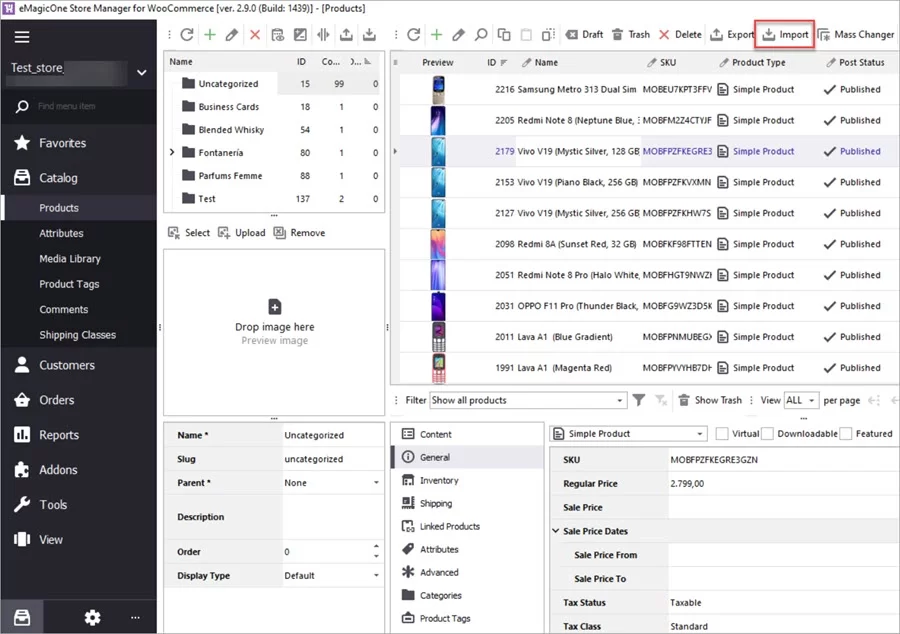
- Launch Import Wizard from Store Manager for WooCommerce. For that go to Catalog > Products > Import.
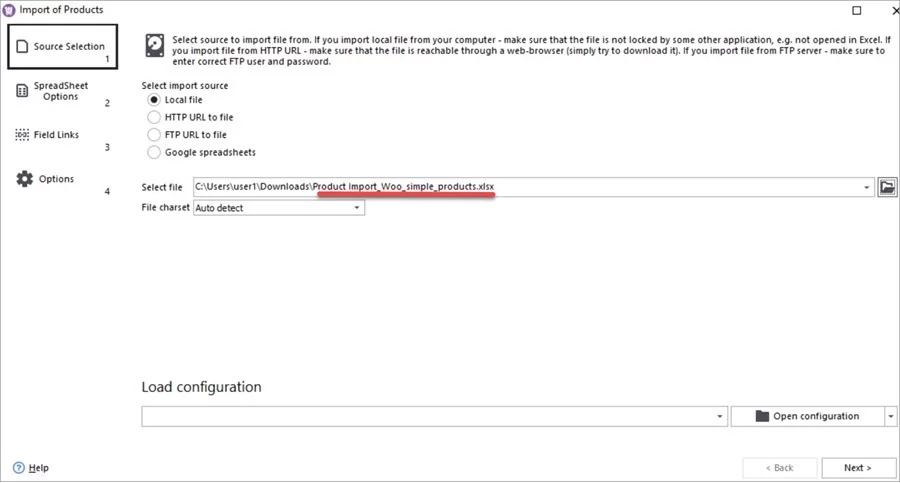
- Select an import source and choose the Excel file you want to import.
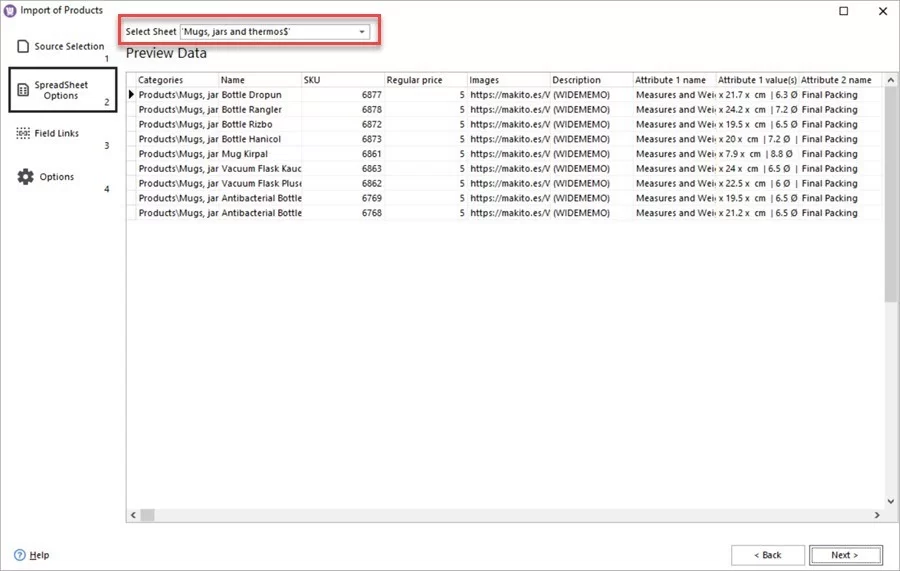
- Select the sheet to import and preview data.
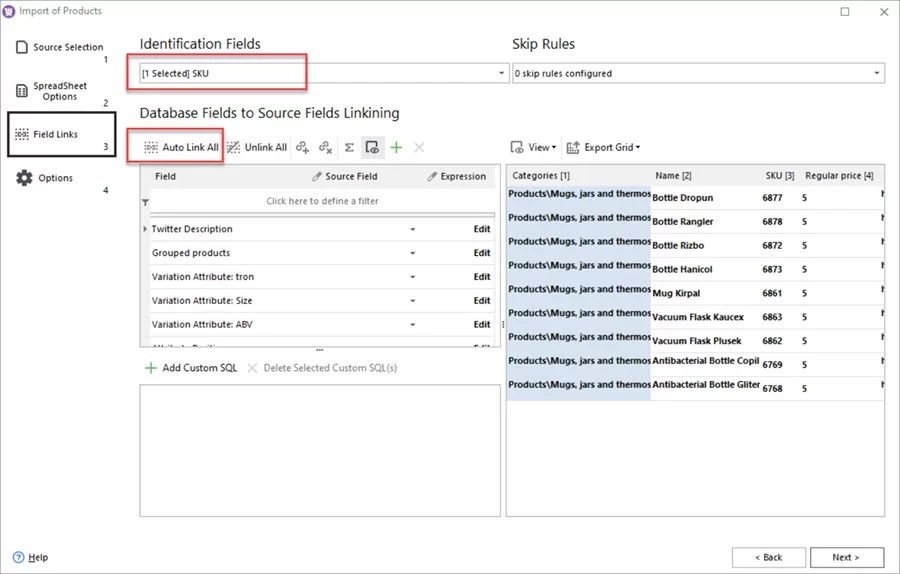
- Select a field to identify products by and map database fields to the ones contained in your Excel file.
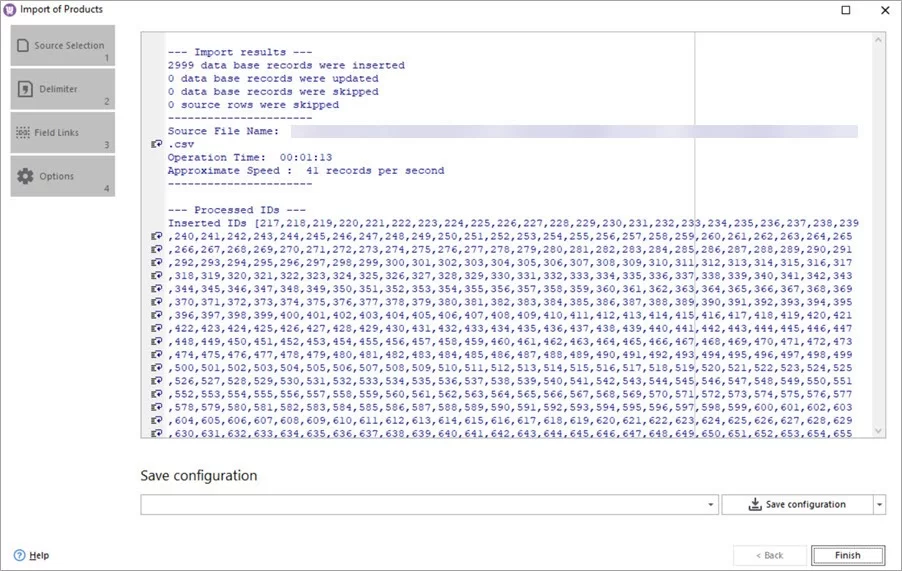
- Select product import method. To proceed with the Excel file upload, press Import.
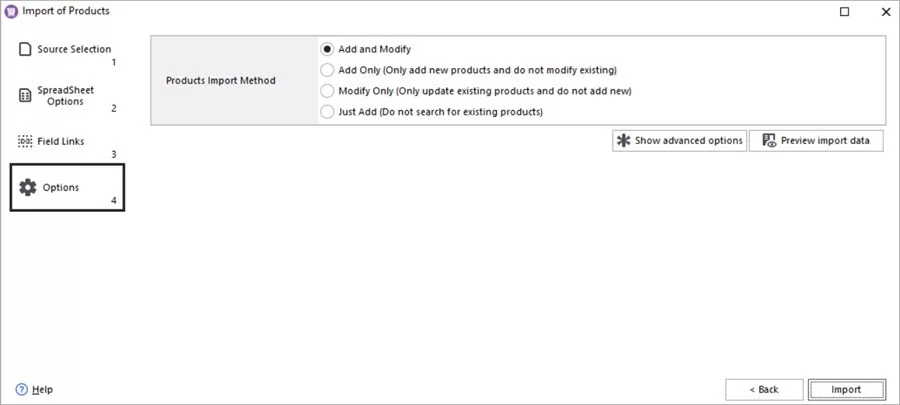
You can save the import settings to a file by pressing the Save configuration button. Next time you need to import products with the same setting, you'll just upload the saved file.