How to Change Store Manager Interface Language
Powerful and comprehensive functionality of Store Manager for WooCommerce keeps on attracting WooCommerce online merchants from around the world. For the application to be easily perceived and operated, it has been translated into numerous languages.
If you have installed Store Manager on your computer, but English language (that is default language of the program) brings you a lot of misunderstandings, you can change it to your native tongue.
How to Install a Language File?
The languages are listed in the Application Language dropdown in the upper-left corner of Store Manager.
-
- Open the Preferences window via Main Menu -> Preferences or simply press F12 hotkey.
- Switch to Localization section provided in the list to the left. Here you can check what languages are available and percentage of translation done. Already activated languages are marked as “Installed”.
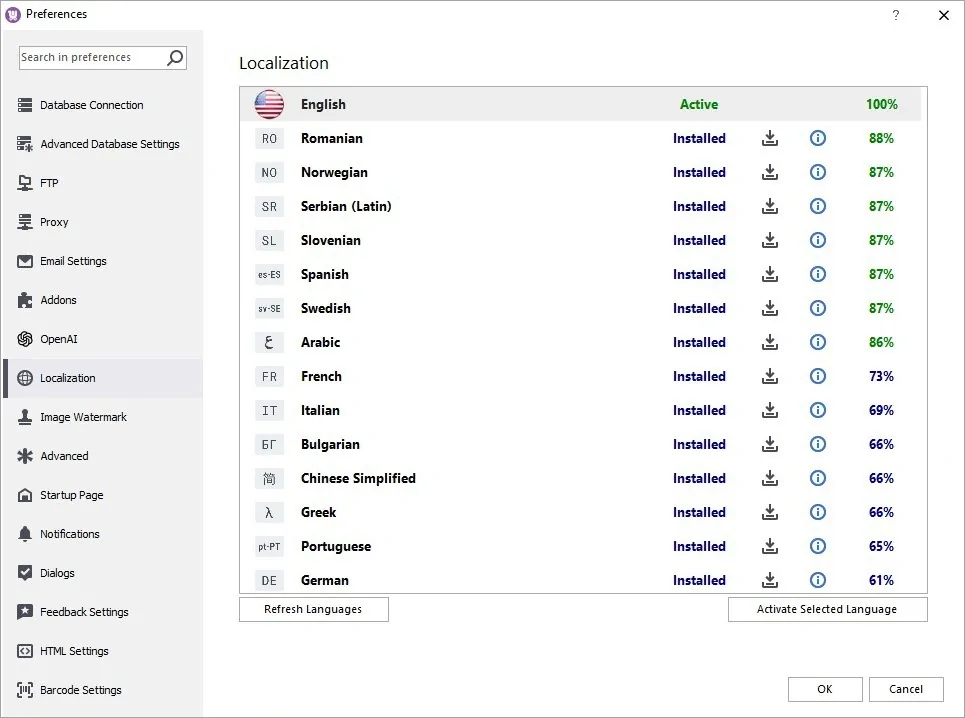
- Choose the language and hit “Activate Selected Language”, “OK”.
In a few seconds all buttons, options and functions of the program will be translated into the selected language. The indicated percentage displays the volume of translation project done.
Store Manager Is Still Not Translated Into My Language
If you have not found your language in the list of supported languages or the translation work done is too small, you are welcome to take part in our translation project and contact us to quicken the process.