How to Add WooCommerce Reviews
WooCommerce product reviews are a powerful tool for establishing loyal relationships with your customers. Often, a comment or a recommendation of another shopper has the biggest effect on the person's decision to buy or not to buy a product. Even negative feedback may be of use for you because it makes the overall picture look more realistic.
Also, product reviews and ratings are good for SEO. Search engines appreciate the unique user-generated content and prefer showing pages containing user reviews and comments in the first positions of the search results.
How to Add WooCommerce Review Form
Here are the steps to enable reviews in your WooCommerce store:
- From the WordPress dashboard go to WooCommerce > Settings
- Switch to the Products tab.
- Scroll down to the Reviews section and select the Enable product reviews check box. Also, define the options related to reviews and ratings:
- Whether to label reviews from verified users.
- Allow reviews only from verified users* (*verified users are those who have purchased the product and have it in the order history in your store).
- Enable star rating.
- Make star rating required.
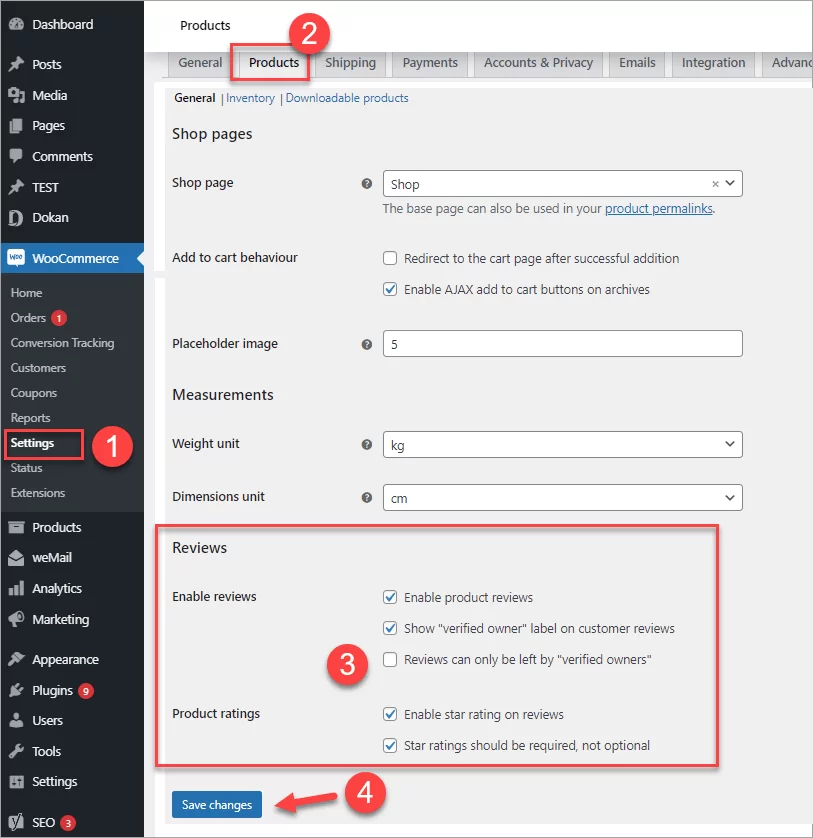
Check Reviews Options
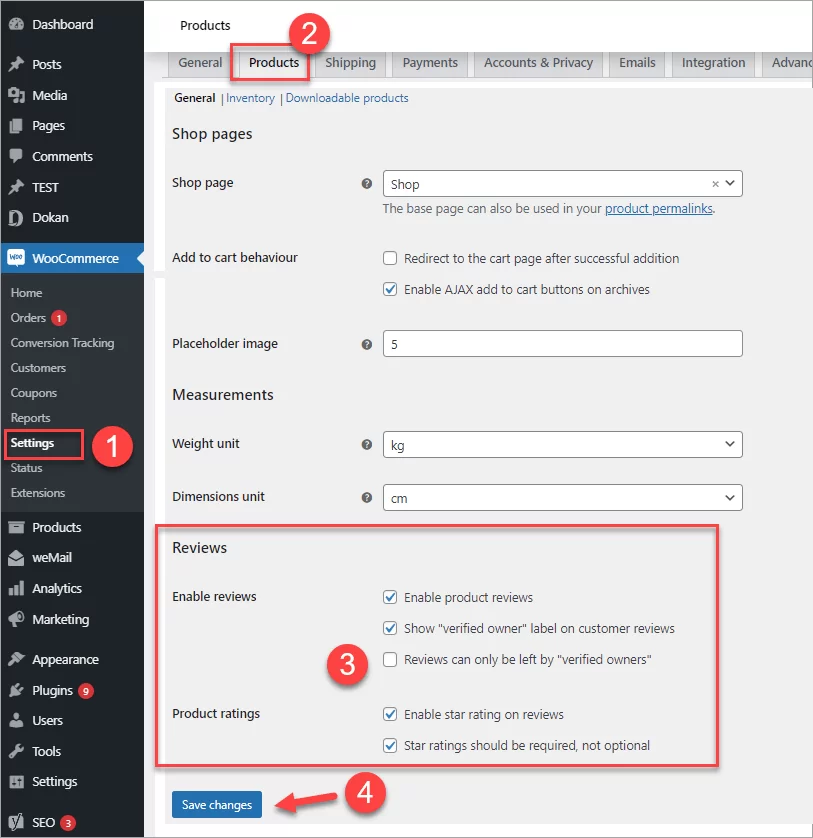
Press Save changes to apply the settings.
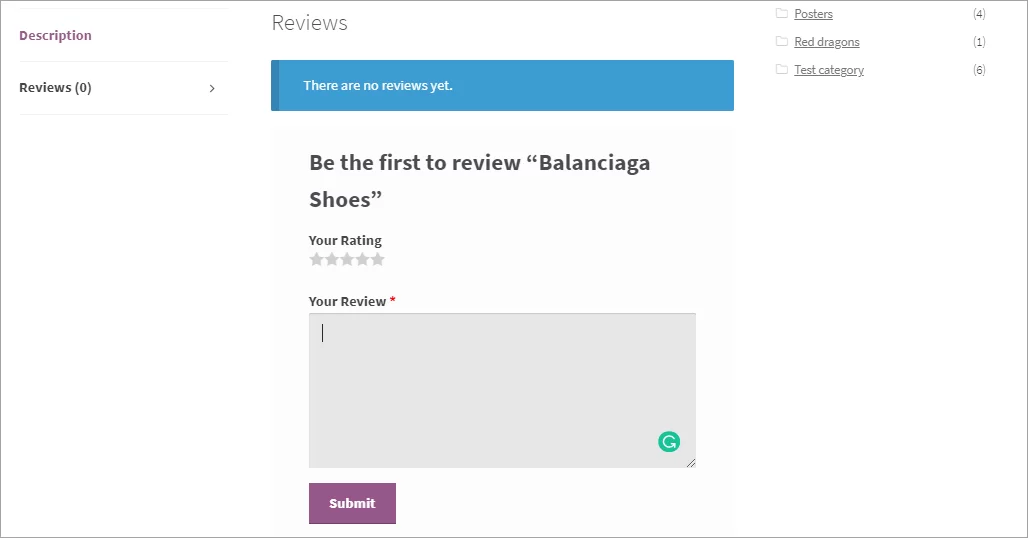
After you enabled reviews in the back end, the review form will be displayed at the store front and your customers will be able to fill it in:
How Moderate WooCommerce Reviews
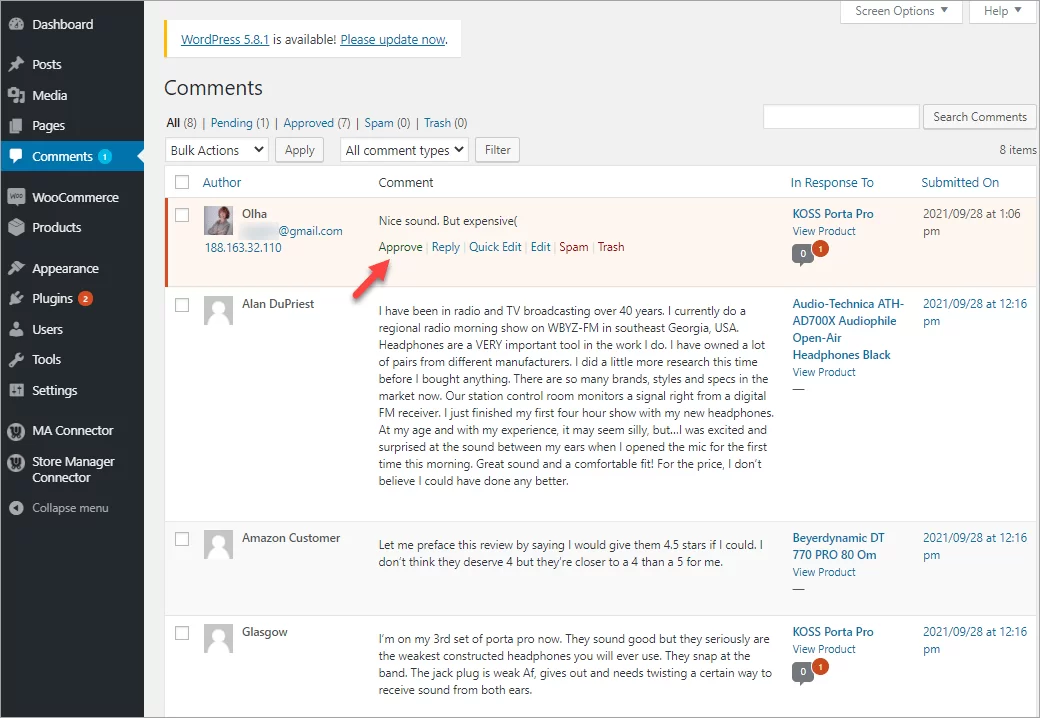
To view and moderate reviews, go to your WordPress admin > Comments. Hover over a review and select your further action:
Discussions Settins to Configure Reviews
Reviews are regarded as a type of comment in the WordPress + WooCommerce installation. So, you can also use the "Discussion" settings to additionally configure reviews. Though, not all Wordpress options will work for WooCommerce.
To access additional options, go to WordPress > Settings > Discussion.
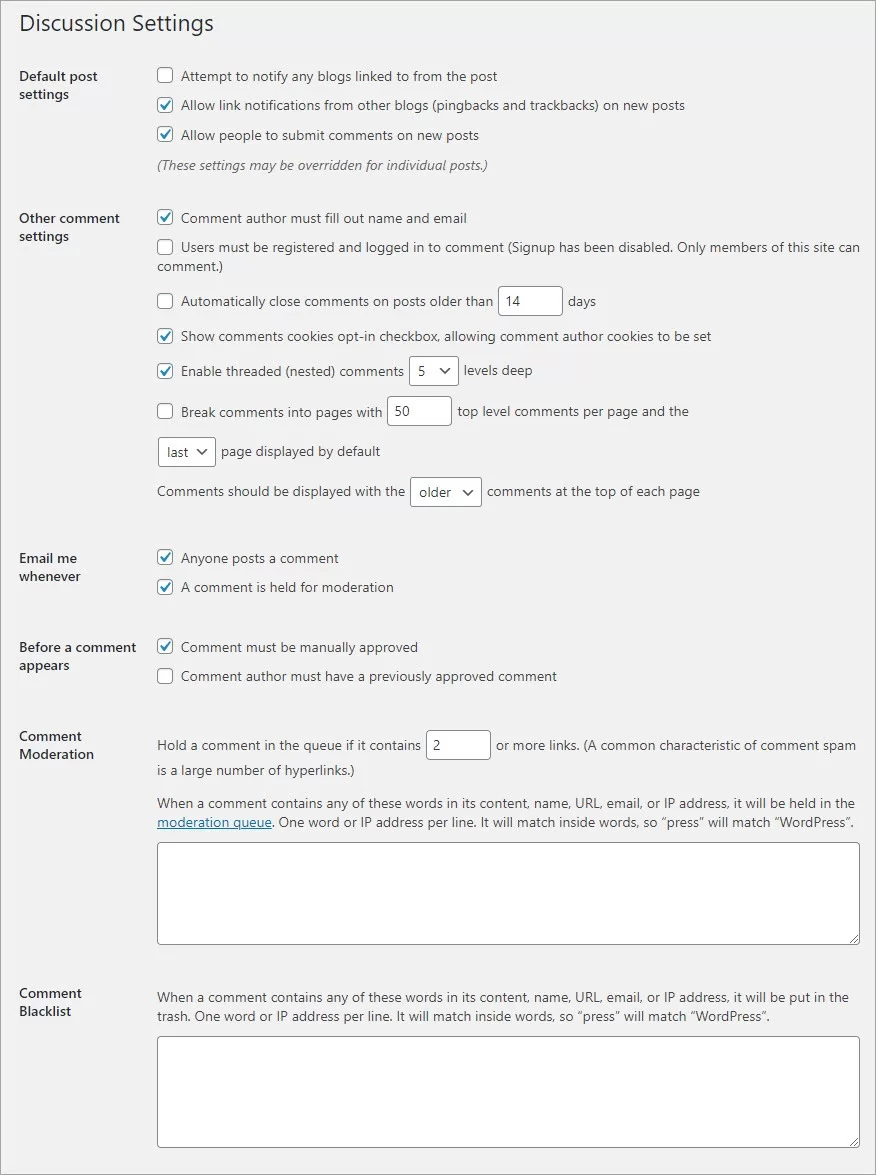
Here you can enable the following options:
- Allow people to post comments on new articles - this option enables reviews checkbox by default when you create a new product.
- Users must be registered and logged in to comment - a login form appears and review can't be submited wothout logging in.
- Enable email notification on new comments and comments awaitng moderation.
Note: WooCommerce may ignore the WordPress “comment must be manually approved” discussion setting. In that case, product review in WooCommerce is immediately available after a user submits it.
How to Add WooCommerce Reviews from the Backend
In some cases, you may need to add reviews from the backend. For instance, when you are moving comments from other sources.
Here is how you can add a review to a product in the WooCommerce admin.
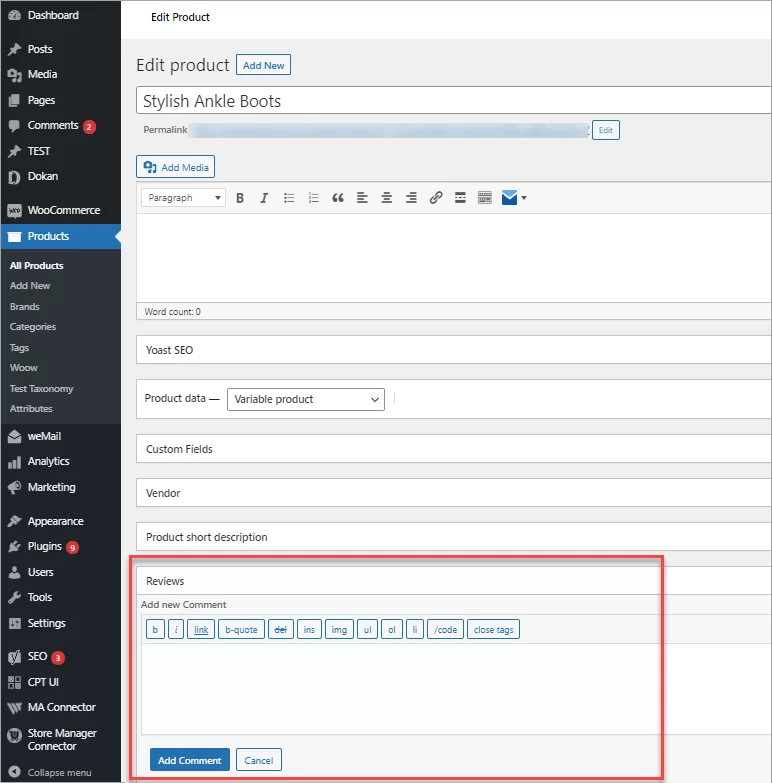
Select a product in the catalog and click Edit. Scroll to the very bottom to find the Reviews section. Click Add comment and enter the content:
You can, though, use a more convenient way to add reviews manually. Using Store Manager for WooCommerce as a desktop version of the WooCommerce admin, you can quicky add reviews to products right in the same window and without reloading the page.
Store Manager for WooComemerce is a desktop application that allows managing your store offline. Store Manager speeds up and simplifies adding/updating products, managing categories, orders, customers, and reviews. Download a free trial to see it in action!
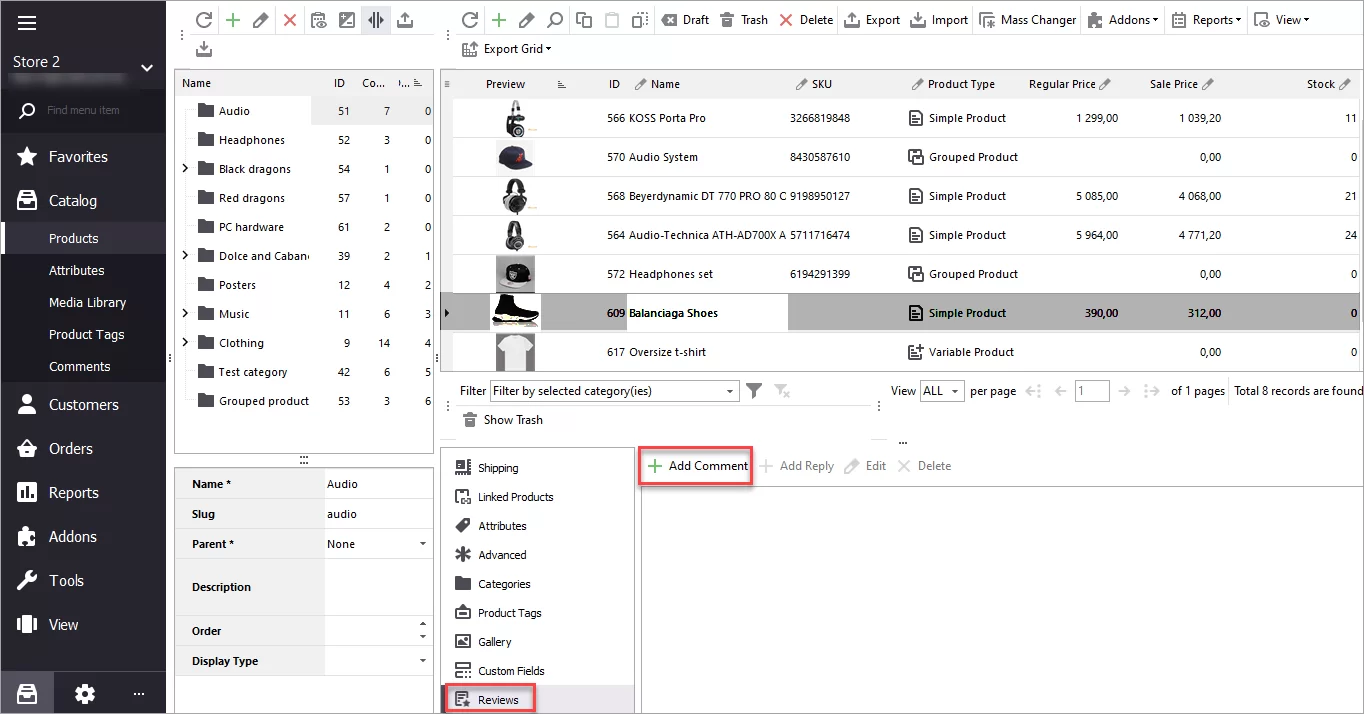
To add a review, click on a product in the list, switch to the Reviewstab and click Add Comment:
Fill in the comment details and rating:
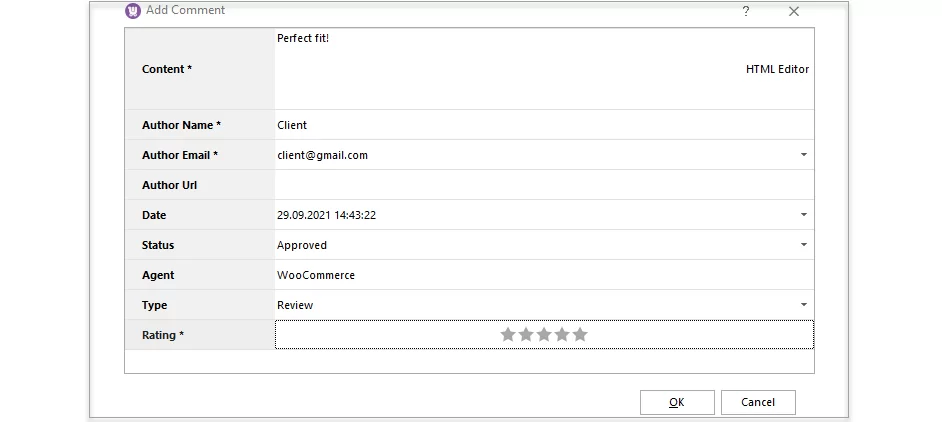
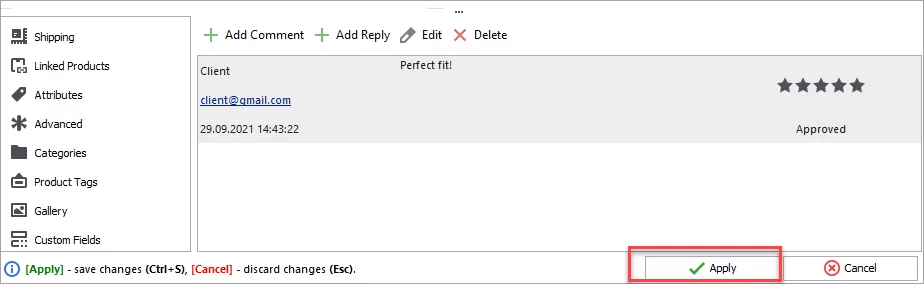
After you press OK, the review will be displayed in the lower grid. Click Apply to add it and make visible at the storefront:
How to Import/Export WooCommerce Reviews
You may have your products featured on multiple marketplaces like Amazon, eBay, AliExpress, and others. If customers leave reviews and comments there, you can import them to your store with Store Manager for WooCommerce. There are multiple ways to get a file for furhter import. Let's have a look at options.
How to prepare a file for import
- Export reviews.
If you have access to your old WooCommerce store and you would like to migrate reviews to a new WooCommerce store, you can export reviews for further import. For that please use Export reviews option of Store Manager for WooCommerce. - Use data scraping service
In case you have reviews on external resource and you have no option to export data, you can use data scraping services by e-scraper.com. In this case you can request any file format you need and get the import-ready file. You can check related article to find out how to scrape reviews from Amazon - Use data scraping software like eScraper
You can also use scraping software to get reviews on a regular basis and update those on your WooCommerce store. Such tool offers multiple formats for reviews. Make sure the format will fit your import tool. Download free trial version of eScraper software and request free assistance with reviews scraping configuration.
Choose the best method to prepare your file for furhter import. This way you will make sure the import works fine and no further adjustments are required.
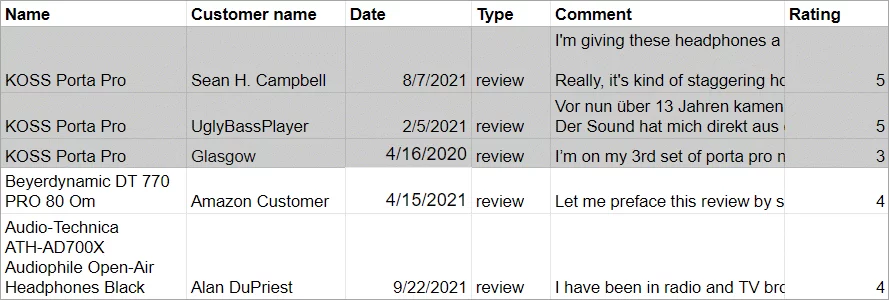
Also to be able to import reviews from a file with no errors, be sure to include the following data:
- Product name or SKU (for product identification)
- Date or ID of the comment (for comment identification)
- Author name
- Author email (if available)
- Comment itself
- Type (review or comment)
- Rating (if available, enter as a number)
- Status (if the status is not specified in the file, comments will be imported as approved)
Note: to import multiple comments/reviews to a product, product name or SKU must be imputed in each row along with the comment details.
Here is a file sample to import reviews from Amazon to our test store. As you can see, the first product has three reviews. Therefore, they are listed in three separate rows:
Steps to Import WooCommerce Reviews
To import reviews you can use Store Manager for WooCommerce software. Download free trial version to perform import reviews, if you do not have Store Manager software installed yet.
Please see detailed instructions on WooCommerce reviews import in this article.
The import reviews steps include:
- Specify import file location (local, external link or google spreadsheet).
- Link database fields to the fields from the source file.
- Select some additional import options and perform import. Make sure to use Advanced options for product identification to identify product by name or SKU.
- Import and check results.
How to Export WooCommerce Reviews
To export reviews you can use Store Manager for WooCommerce software. Download free trial version to perform reviews export, if you do not have the software yet.
Please see detailed instructions on WooCommerce reviews or comments export in this article.
To export reviews from your WooCommerce store, in Store Manager go to Catalog > Comments and press Export Data and proceed with the following steps:
- Select whether to save data locally in CSV format or export reviews to Google Docs.
- Select the delimiter (if you had opted for CSV export).
- Add fields to be exported.
- Select whether to export all or selected products.
Provide complete information on your product, increase revenue and make sure your customers trust your site with WooCommerce reviews. Take advantage of the extended possibilities of Store Manager to add, import and export WooCommerce reviews today.