How to Import Reviews to WooCommerce
Do you want to import reviews to WooCommerce from Amazon, eBay, AliExpress, Etsy, or other sales channels? Below you'll find a guide on how to prepare the import file and upload the reviews to WooCommerce step by step.
Prepare a File to Import Reviews to WooCommere
Usually, you get reviews by exporting them to a file (if a platform provides such an option) or scraping them with a web scraper tool or service. Regardless of the way you get a file with reviews, you should check if it fits the structure of the WooCommerce database before you import it. So, to import reviews to WooCommerce, your file must include the following fields:
- Product name or SKU.
- Comment Date or Comment ID (*comment ID is used to update existing reviews via import).
- Author name.
- Author email (if available).
- Comment itself.
- Type - review or comment (the "Review" type presumes the display of rating stars along with the comment).
- Rating (if available, enter as a number).
- Status (if the status is not specified in the file, comments will be imported as approved).
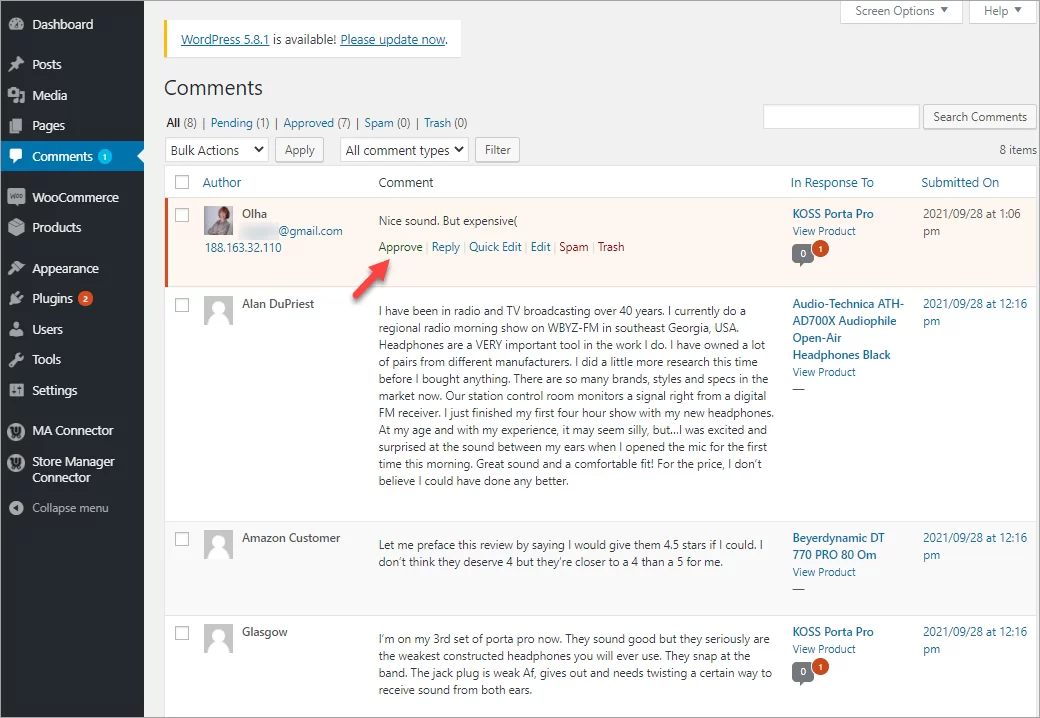
As you've noticed, the list above has two entities: comments and reviews. That's because WooCommerce is a plugin for WordPress. Therefore, a comment is a WordPress entity and a review is a WooCommerce entity although basically, they mean the same thing. A type (comment or review) only impacts the display of rating stars. To show a rating, the type must be specified as "Review".
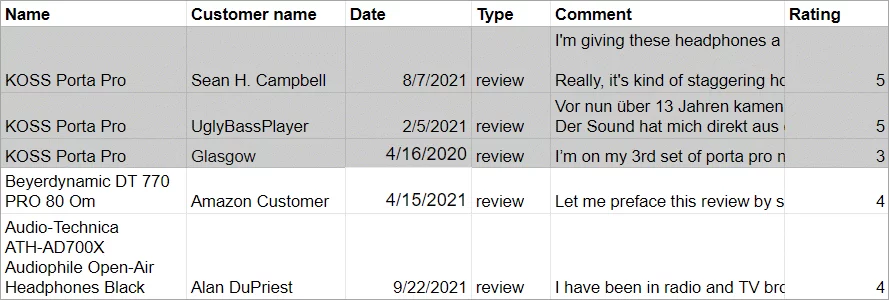
Here is a file sample to import reviews from Amazon to our test store. As you can see, the first product has three reviews. Therefore, they are listed in three separate rows:
Import WooCommerce Reviews via the Store Manager Wizard
As WooCommorce doesn't have an option to import reviews, you have to use a third-party tool to accomplish the task. Such a tool is provided by Store Manager for WooCommerce.
If you don’t have Store Manager yet, download a free trial and install it on your computer. Connect the application to your store database and enjoy the simplicity of your store administration.
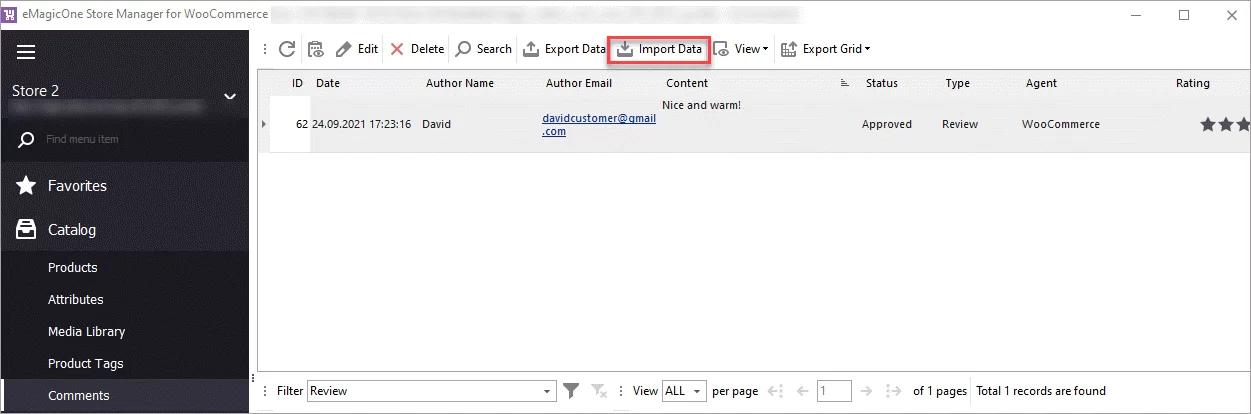
With Store Manager open, navigate to the Side Menu > Catalog > Comments. Press Import Data on the toolbar to launch the import wizard:
The import wizard will open. Follow the steps to complete the import successfully.
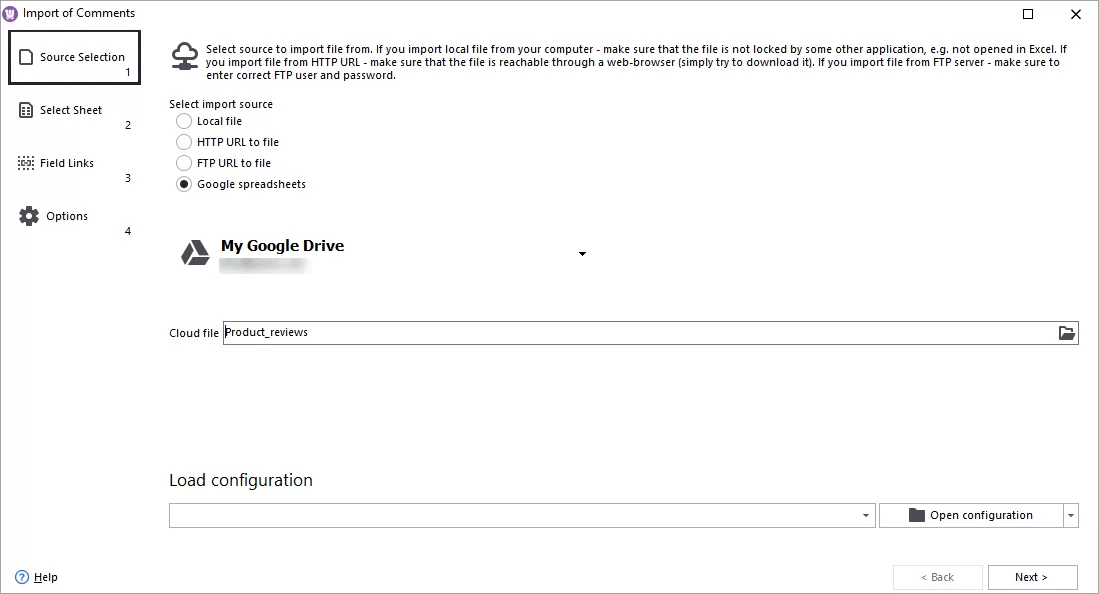
- Specify the source of import and select the file. In our example, we’re importing reviews from Google Sheets:
Read a tutorial on how to import data to WooCommerce from Google Sheets.
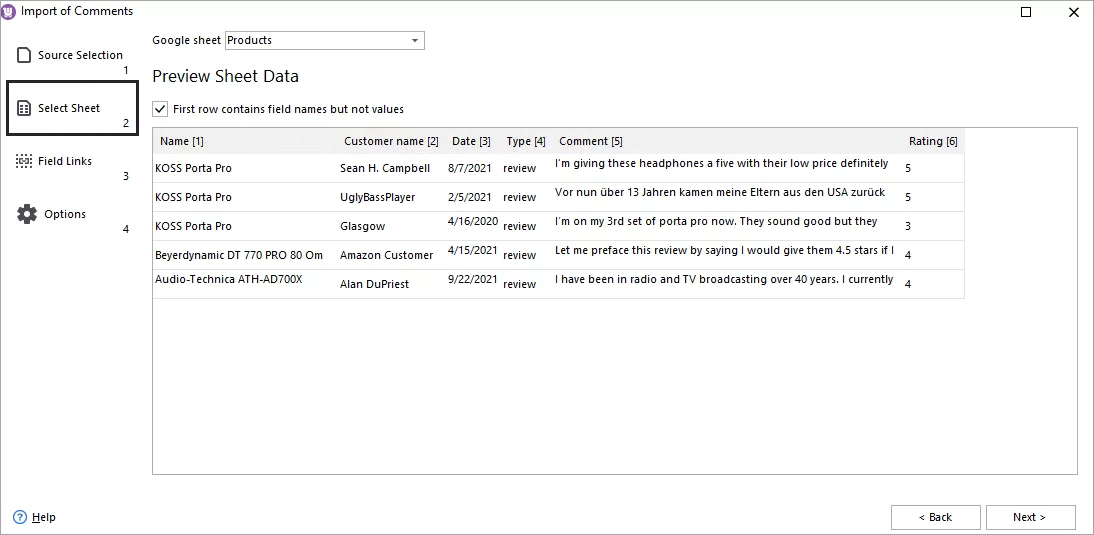
- Select a sheet and preview data:
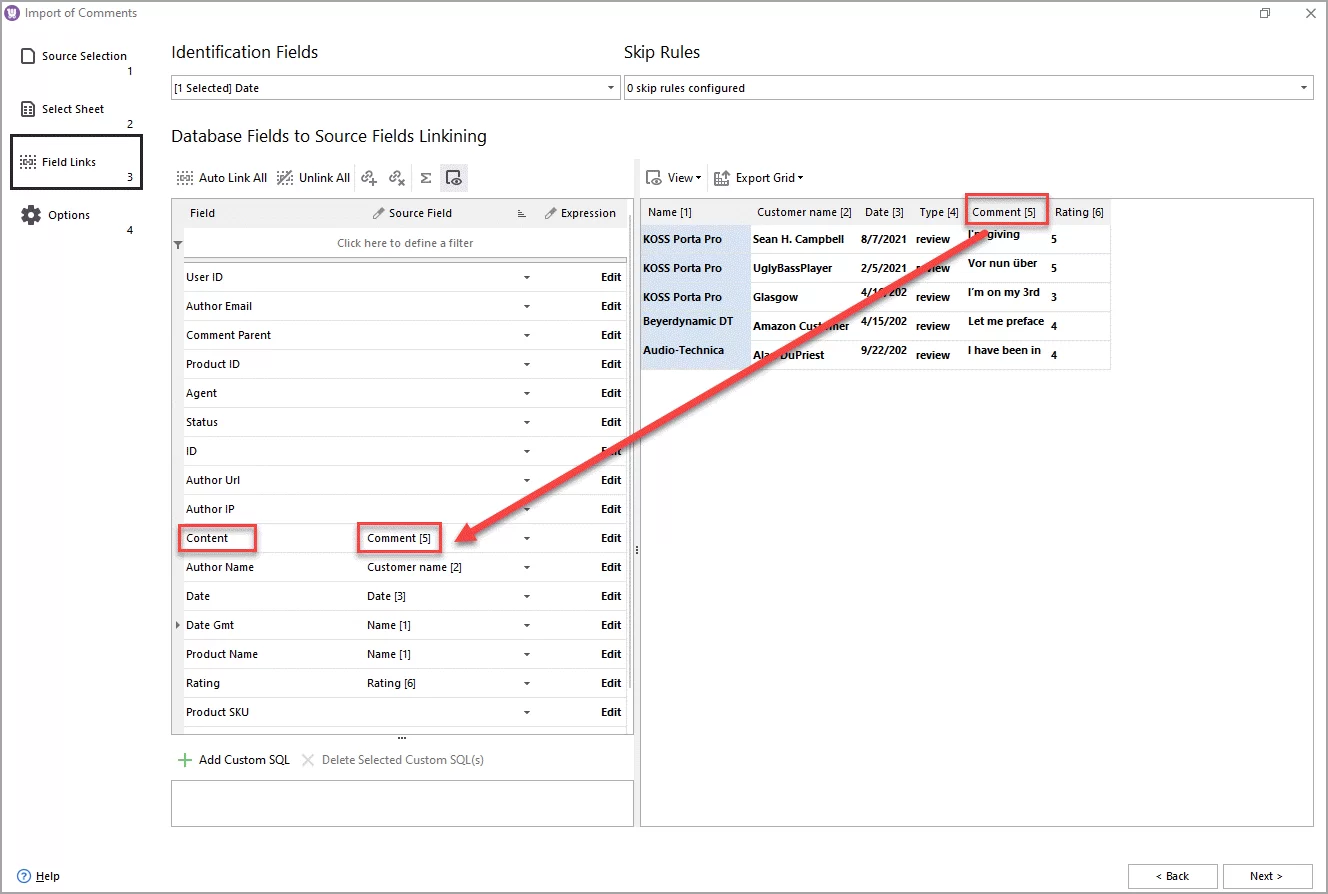
- Link database fields to the fields from the source file.
In this step, you’ll specify the Identification Field that you use in your file to identify comments. In our sample file, we use Date as an identifier, and therefore, we specify it in this step.
Next, you should link fields from the file to the WooCommerce database fields. In the left pane, the first column shows a list of WooCommerce database fields. In the second column, you should specify corresponding columns from your import file. Preview your import file on the right pane to pick a matching column:
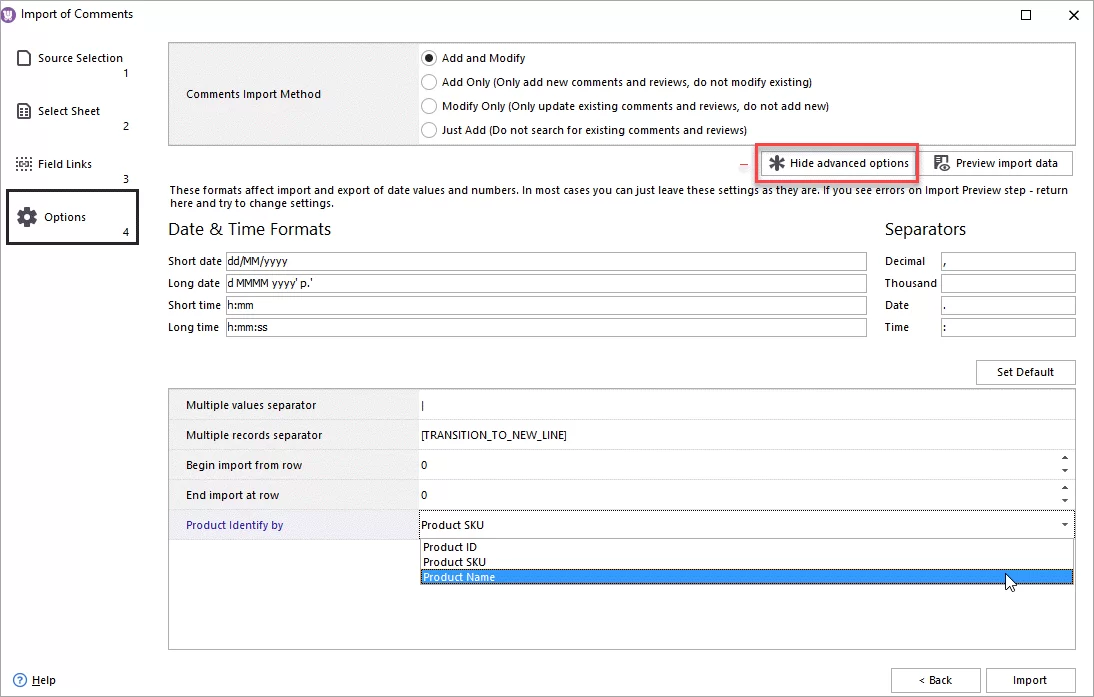
- Import options. Firstly, choose one of the four import methods:
- Add and Modify - if the import file contains new and existing comments/reviews, new ones will be imported and existing ones will be updated.
- Add only - if the import file contains new and existing comments/reviews, new ones will be imported and existing ones will be skipped.
- Modify only - existing comments/reviews will be updated and new ones will be skipped.
- Just add - all comments/reviews from the file will be added as new without checking for the existing comments.
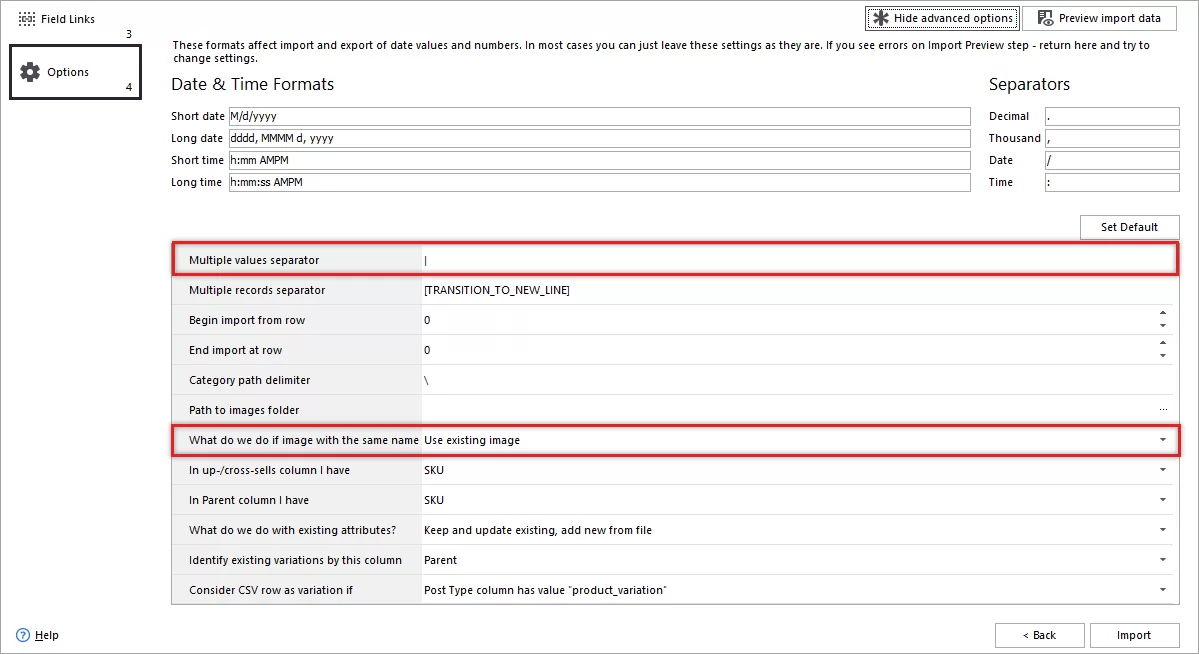
Next, expand Advanced options and select a Product Identification field. In our file, products are identified by their name, so we select this field in the drop-down. When you are done with the setting, press Import.
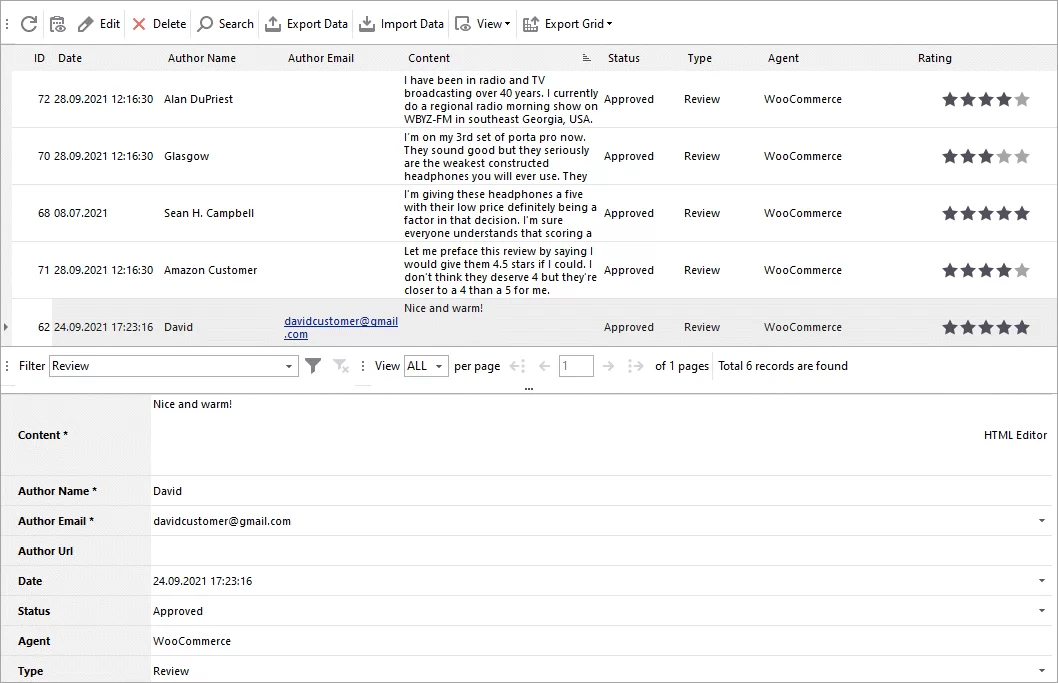
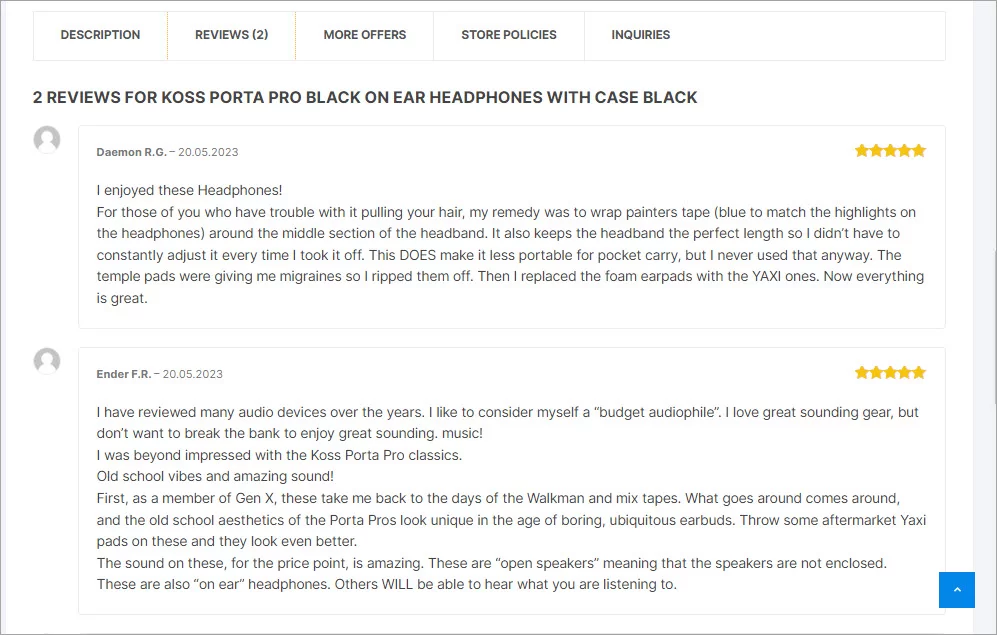
The reviews have been imported and now are visible in the Comments section.
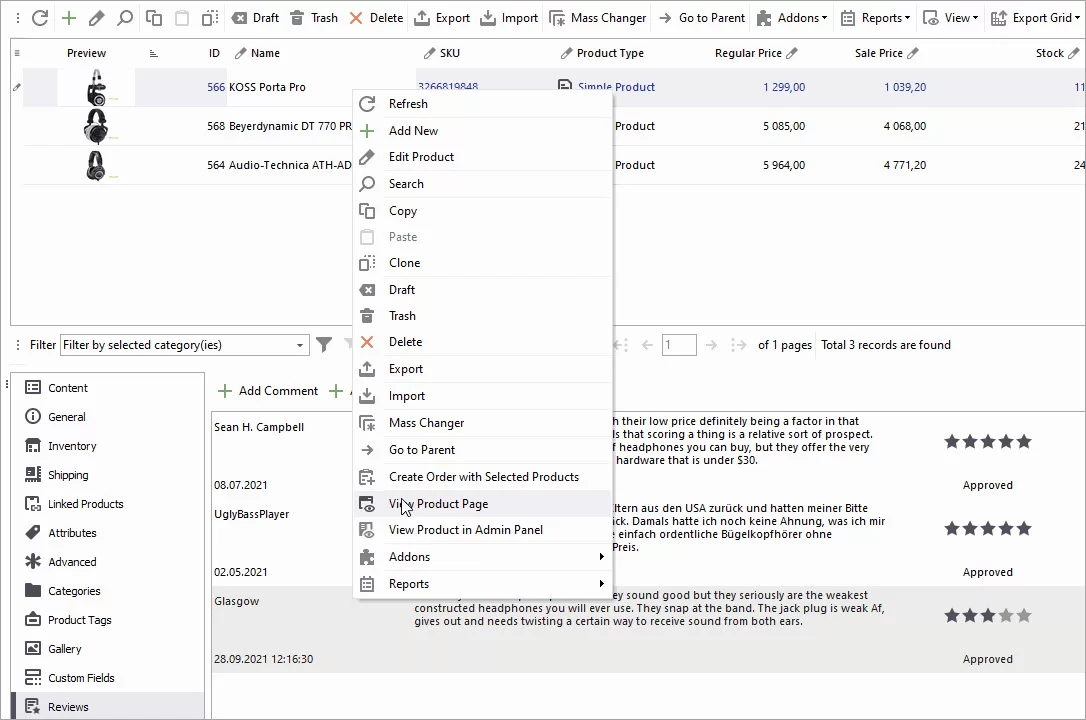
Let’s now go to the product and check the reviews on the product page at the storefront:
Summing up
Using the Store Manager import tool, you can import reviews to WooCommerce from any external platform. For the successful import, remember to do the following:
- Include in the import file an identification field like product name or SKU
- To import rating stars, specify "Review" as a type.
- To import several reviews for a product, repeat a line with the product for every review.
- In the import wizard, map the WooCommerce fields to the columns from your file correctly.
If you have any questions or are still hesitant if your file with reviews is configured correctly, write us in the comments below and we'll try to help you!